
A WooCommerce stock take means counting what is physically on your shelves, comparing it with the stock quantity WooCommerce holds and correcting the difference. A barcode scanner makes the counting fast: every scan adds one unit to the counted product. WooCommerce has no count screen of its own, so you need either a spreadsheet routine or a count tool.
Why WooCommerce stock drifts from the shelf
WooCommerce only knows about the stock changes it is told about. Everything else slowly opens a gap between the number on screen and the number on the shelf:
- damaged, lost or stolen items nobody booked out;
- picking mistakes, where a customer received the wrong size and the stock of both sizes is now wrong;
- returns put back on the shelf without being restocked in WooCommerce, or restocked twice;
- quantities typed by hand on the product screen or in an import that overwrote a sale.
The result is overselling online, or products that show as sold out while they sit in a box. A regular count is the only way to find out how big the gap is.
What plain WooCommerce gives you
WooCommerce keeps a stock quantity for each product and variation once stock management is switched on (WooCommerce → Settings → Products → Inventory, and "Manage stock?" on the product). Since version 9.2 products also have a field for a GTIN, UPC, EAN or ISBN. For a count, the built-in tools are:
- Editing each product. Fine for five products, painful for five hundred.
- CSV export and import. Export products with their stock, fill in the counted numbers, then import with "Update existing products" ticked.
The CSV route has a trap: any sale between the export and the import is overwritten. If you sold two units while counting, the import puts them back on paper. You also get no record of the difference, only the new number.
Common stock take mistakes
- Counting during trading without a check. The count is right at the moment you scan, but a sale ten minutes later makes it wrong when you apply it.
- Mixing up full and partial counts. In a full count, every product you did not count is set to zero. That is right for a year-end count of the whole store and a disaster for a count of one shelf.
- Counting variations at the parent. "12 T-shirts" is not a count when the stock is held per size and colour.
- Codes that do not match. Many scanners are set to leave out an EAN's check digit or add a 0 in front of a UPC, so the code that arrives is not the one stored on the product.
- Confirming the screen. When counters can see the expected number, they tend to find it.
- No way back. A wrong apply with no restore point means counting again.
A practical checklist for your stock take
- Give every product and variation an SKU or barcode. Products without one can still be counted by name, but slowly.
- Test the scanner: click into any text field and scan. The code should appear, usually followed by Enter.
- Decide the scope: the whole store (full count) or one category or shelf (partial count).
- Decide whether counters should see the expected numbers. For staff counts, a blind count is more honest.
- Count area by area, one person per area, and put counted boxes aside.
- Review the differences. Recount anything large or surprising before you apply it.
- Apply, and keep the count as a record of what was found.
How a stock count works in StoreRuler Plus
Stock counts are part of StoreRuler Plus, under Stock & Purchasing → Stock Count. A new count asks for a name, the scope (all products or one category), the method and whether it is a blind count:
- Partial count: only the products you count can change.
- Full count: uncounted products are set to zero, and only after you confirm it for the exact number of uncounted products.
- Blind count: expected stock and differences stay hidden while counting.

While the count is open, you scan into the Barcode / SKU box. Each scan adds to the counted quantity, and the box clears at once so the next scan is never lost. To replace a total you got wrong, use Enter quantity on the product's row. A product that does not exist yet can be created from the count.
A scanned code is looked up in WooCommerce's GTIN field, the product's barcode field and the SKU. When nothing matches, StoreRuler tries the usual scanner changes (a missing check digit, an extra leading zero) and accepts the result only when exactly one product holds it. Each variation is its own line.
Inventory does not change while you count. When you finish, the count moves to review, where each product shows its expected and live stock next to the counted quantity and the difference. If a product sold or was received after you counted it, it is marked "Recount required" and approval waits until it is counted again. Someone with the approval permission then approves, and the counted quantities are written to WooCommerce stock. Your website and the till in the physical store sell from that same stock, so there is nothing to sync afterwards.
Before stock changes, a restore point is saved. Restoring it is refused if stock moved after the count was applied, so an undo cannot wipe out later sales.
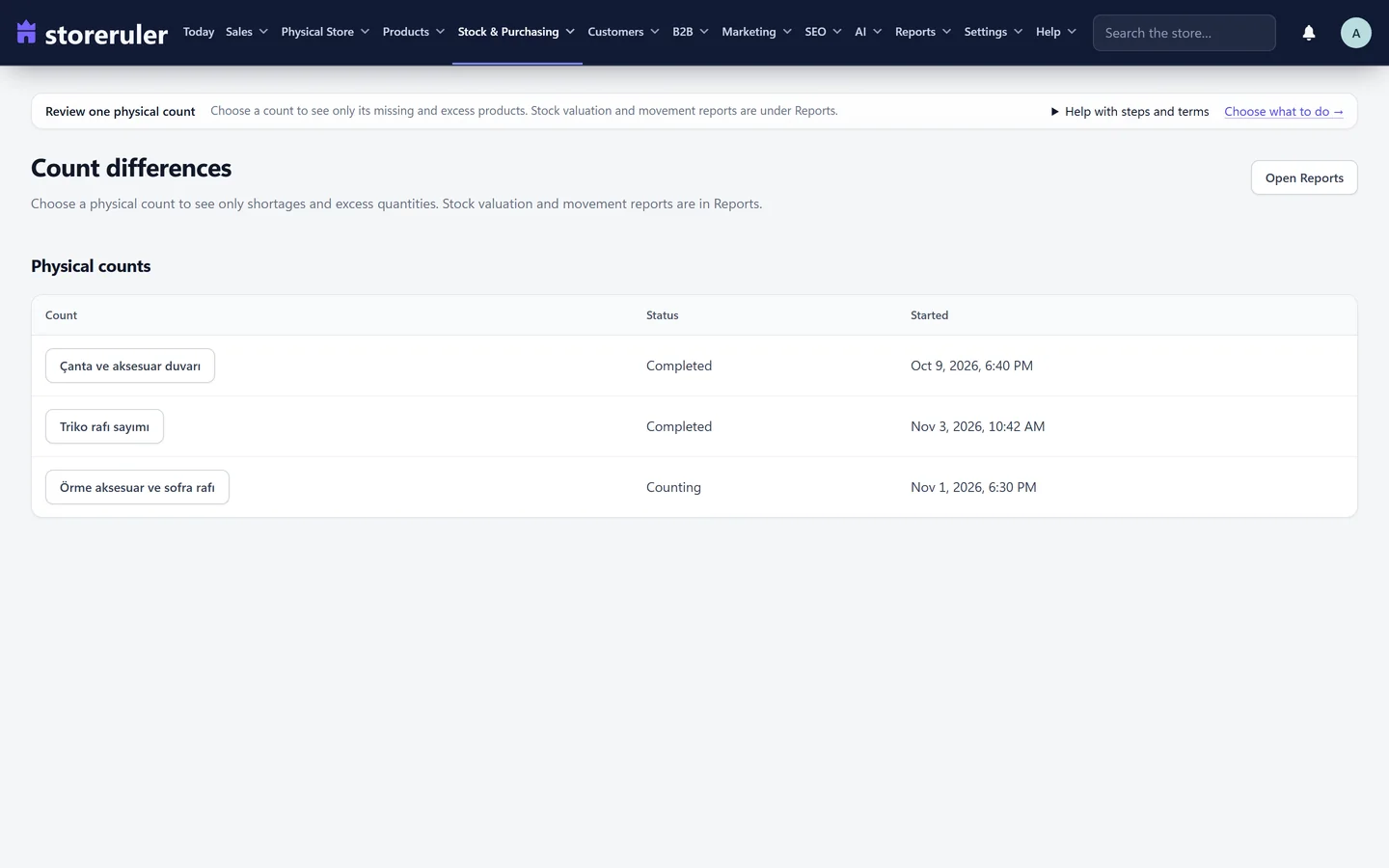
The Count differences screen shows one count's shortages and excess quantities. For a blind count, those differences are shown only to people with the approval permission.
Stock counts are in StoreRuler Plus, which also includes the till and purchasing. Compare the plans on the pricing page.
Before your first count
Most count problems start with product data. The free StoreRuler plugin can list products with no SKU, barcode or photo; see how to find WooCommerce products missing an SKU, price or image. If you also sell at a counter, read WooCommerce POS for a physical shop, because the till reduces the same stock you count. The inventory and purchasing overview shows how counts, buying lists and goods-in fit together.
Frequently asked questions
Can I count stock while the shop stays open?
Yes, if your count tool notices sales made during the count. In StoreRuler Plus a product whose stock changed after it was counted is marked "Recount required", and the count cannot be approved until it is counted again.
Do I need a special barcode scanner?
No particular model. A USB or Bluetooth scanner types the code into the field like a keyboard, so it works wherever typing the code works. StoreRuler does not certify scanner models; test yours in the scan box before the count.
What is a blind count?
A count where the counter does not see the quantity the system expects. People then write down what they find instead of confirming the number on the screen. The differences are shown later, to the person who reviews and approves the count.
Is stock counting part of the free StoreRuler plugin?
No. Stock counts are part of StoreRuler Plus. The free plugin helps you prepare: its product health filters find products with no SKU or barcode.
