
The order desk is StoreRuler's order management screen for WooCommerce. It lists every order by stage (New, Preparing, Ready to ship and Completed) and shows the next task on each row. Open it from StoreRuler → Sales. It is in the free version and in every StoreRuler Pro plan.
What WooCommerce shows on its own
WooCommerce's Orders screen sorts orders by status: Pending payment, Processing, On hold, Completed and so on. The status tells you about payment, but not how far the work has gone. An order in Processing may be untouched, half picked or already in a box, and teams usually keep track of that on paper.
The order desk adds that layer. Orders stay WooCommerce orders with their WooCommerce statuses; StoreRuler records the preparation stage beside them.
The four stages
| Stage | What it means | Next task |
|---|---|---|
| New | The order arrived and nobody has started on it. | Start preparing |
| Preparing | Products are being picked and packed. | Mark as ready |
| Ready to ship | Every product is picked and packed. | Record delivery, or record an in-person handover for store pickup |
| Completed | Handed to the carrier or to the customer. | Nothing, or follow an open payment |
The tabs also include All and Cancelled / returned, each with a count. Below the search, Also track → Awaiting payment lists orders whose money has not arrived. An open payment does not stop preparation or shipping; it stays on the order until it is paid.
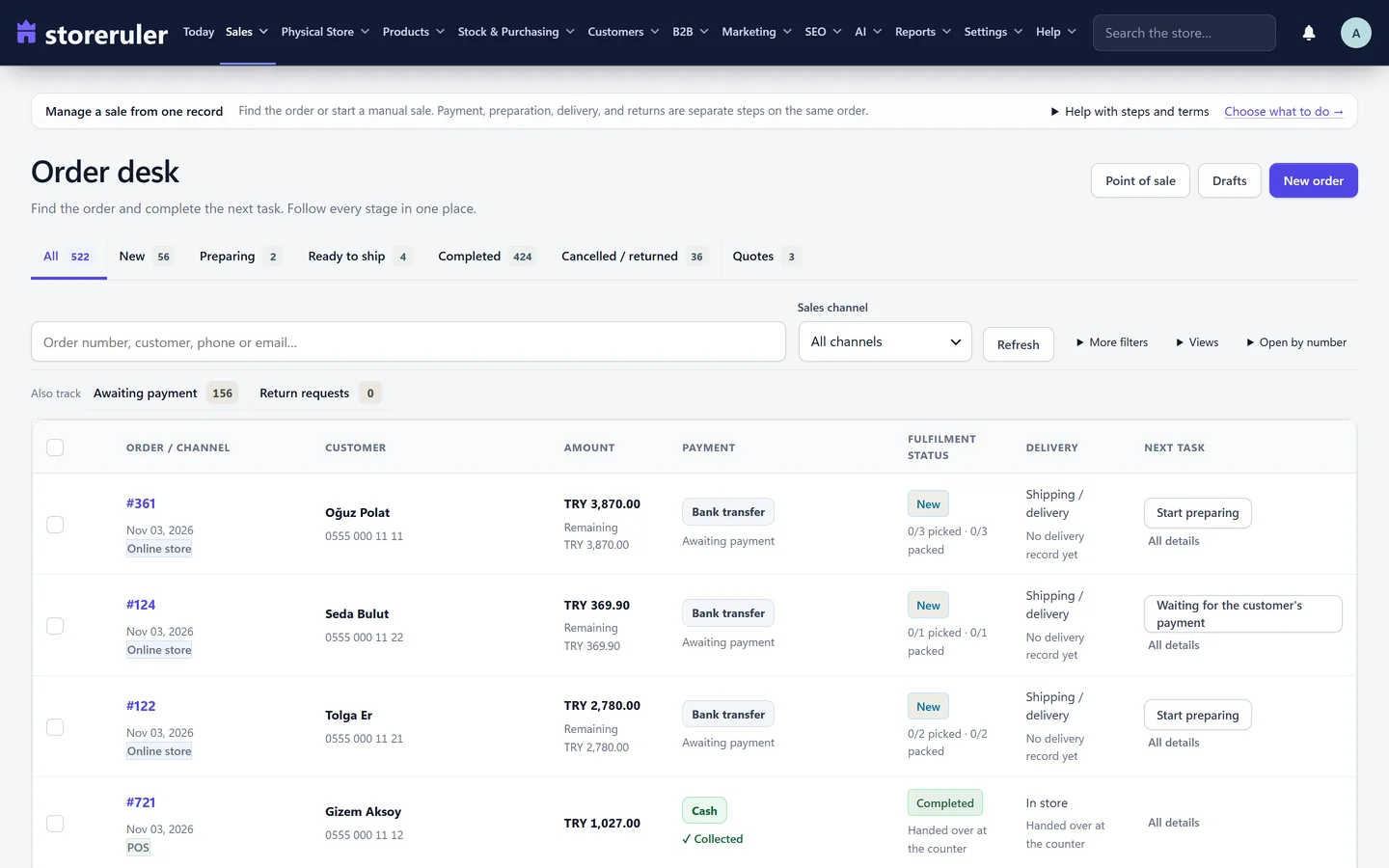
This screenshot comes from a store on a paid plan, so it shows a few buttons the free version does not have, such as New order and Point of sale.
Find an order
- Search. Type an order number, customer name, email or phone number. A phone number is found however it was typed.
- Sales channel. Narrow the list to one channel, such as the online store.
- More filters. Payment (Awaiting payment or Payment complete), order date (Today, Last 7 days, Last 30 days, This month or Custom dates) and the sort order.
The list shows 30 orders per page. Each row has the customer, the amount, the payment state, the fulfilment status (for example "1/3 picked · 0/3 packed"), the delivery details and a button for the next task.
Save a view
- Set the stage tab and the filters you use often, for example New orders from the online store, oldest first.
- Open Views and click Save current view.
- Type a name. If you may share views, choose Only me or Everyone on the team.
- Click Save view.
A view keeps the stage, channel, payment, date, sort and search. Applying it never changes an order. After you change the filters, Update with current filters saves them into the open view.
Work through one order
Click the order number, or the button in the Next task column. The order page shows the four stages as a line, the next step at the top, then the products, the payment summary, shipping and delivery, and the order's activity. The customer and the delivery address stay in the side column.
- Click Start preparing. Only the work queue changes; no stock or payment is touched. If a prepaid order is not paid yet, StoreRuler shows the open amount and asks before it starts.
- On each product, click Prepare / hand over and record what you did: picked, packed or handed over, with the quantity. When you pick, scan or type the product's barcode or SKU. Pick lists and packing slips covers this step.
- When every product is packed, the order moves to Ready to ship by itself. Mark as ready does the same in one step: it marks every remaining product as picked and packed.
- Click Record delivery to save the carrier and the tracking number. Shipping and tracking explains the shipment window.
Next order → opens the next order in the list, so you can keep going without returning to it.
Several orders at once
Tick the orders you want; the box in the header selects every order on the page. A bar appears with Pick list, Packing slips, Order summaries, Export selected (CSV) and the step that fits the tab: Start preparing selected, Mark selected as ready or Ship selected. Each step shows how many of the selected orders can take it, and an order that cannot is listed with the reason. The CSV file has the order, date, channel, customer, phone, email, total, currency, amount remaining, payment, fulfilment status, delivery and tracking number.
How the desk changes WooCommerce
When an order is fully shipped or handed over and nothing is left to pay, StoreRuler sets it to Completed in WooCommerce. When you cancel an order on the desk, it is cancelled in WooCommerce, which restores its stock. WooCommerce sends its usual emails for these status changes.
Manual and phone orders, returns and order editing are part of StoreRuler Pro. See order management for the full picture and pricing for the plans.
Frequently asked questions
Does the order desk replace WooCommerce's Orders screen?
No. Both keep working on the same orders. StoreRuler records the preparation stage beside each order and leaves the WooCommerce status alone while you prepare it.
Who can use the order desk?
Administrators and shop managers.
Does it work with HPOS?
Yes. The order desk works with WooCommerce's High-Performance Order Storage and with the older posts-based order storage.
Can I manage orders on my phone?
Yes, in the phone's browser. You can also add StoreRuler to the home screen, which gives you a shortcut to the order desk.
