
To print a pick list in WooCommerce, use a tool that adds up the products of several orders, because WooCommerce shows orders one at a time. With the free StoreRuler plugin, tick the orders on the order desk, click Pick list and print one list with each product once, the units to pick and the orders they go to.
What a pick list is, and why batch picking saves time
A pick list is the sheet you carry through the stockroom. It tells you which products to take off the shelf and how many. When one list covers many orders, it is called batch picking: one walk along the shelves instead of one walk per order.
The saving grows with your order count. Ten orders picked one by one can mean ten trips to the same shelf for the same T-shirt. A batch list says "Blue T-shirt, size M: 7 units" once, and you sort those units into parcels at the packing table.
A good pick list answers four questions:
- What: the product name and its options, such as colour and size.
- Which exact item: the SKU or barcode, so two similar products are not mixed up.
- How many: the total units across the selected orders.
- For whom: which orders those units go to, so sorting them afterwards is quick.
What plain WooCommerce gives you
WooCommerce has no pick list and no print button for orders. On its Orders screen you can filter by status, open an order, or use the preview button to see its items. That is fine for a handful of orders a day.
Beyond that, store owners usually try one of these:
- Printing each order page from the browser. You get one sheet per order, full of admin controls, and you still walk to the same shelf several times.
- Exporting orders to a spreadsheet and building a table by product. It works, but it is a manual job every day, and it is easy to include an order that was cancelled after the export.
- A plugin that prints pick lists. Before you rely on one, check what it does with variations, refunds and cancelled orders.
Common pick list mistakes
- Counting refunded units. If a customer cancelled one of three items, the list should ask for two. A list built from the original quantities sends you to the shelf for nothing.
- Merging variations. "Hoodie × 5" is no help if the five are in three sizes. Each variation needs its own row.
- Including closed orders. Cancelled, failed and refunded orders should never reach the stockroom.
- Picking the same units twice. If part of an order was picked yesterday, today's list should show only what is left.
- Sorting by order instead of by product. A list sorted by order number is just the orders again. Sorting by product code is what shortens the walk.
A simple batch picking routine
- Choose a cut-off time, for example 2 p.m., and batch the paid orders that arrived before it.
- Print one pick list for the batch and take a basket or a trolley.
- Walk the shelves in the list's order and tick each row as you go.
- At the packing table, sort the units into orders using the order numbers on each row.
- Check each parcel against its packing slip before you close it.
- Mark the orders as ready, so nobody picks them again.
If your SKUs start with a shelf or aisle code, a list sorted by SKU is also your walking route.
How StoreRuler prints a WooCommerce pick list
StoreRuler adds an order desk to the WordPress admin, under StoreRuler → Sales. It shows every order grouped by stage: New, Preparing, Ready to ship and Completed. Tick the orders you want to batch and click Pick list. The desk shows 30 orders a page and one printout takes up to 100, so a bigger batch prints page by page. A print page opens with a Print button; your browser's print dialog can also save it as a PDF.
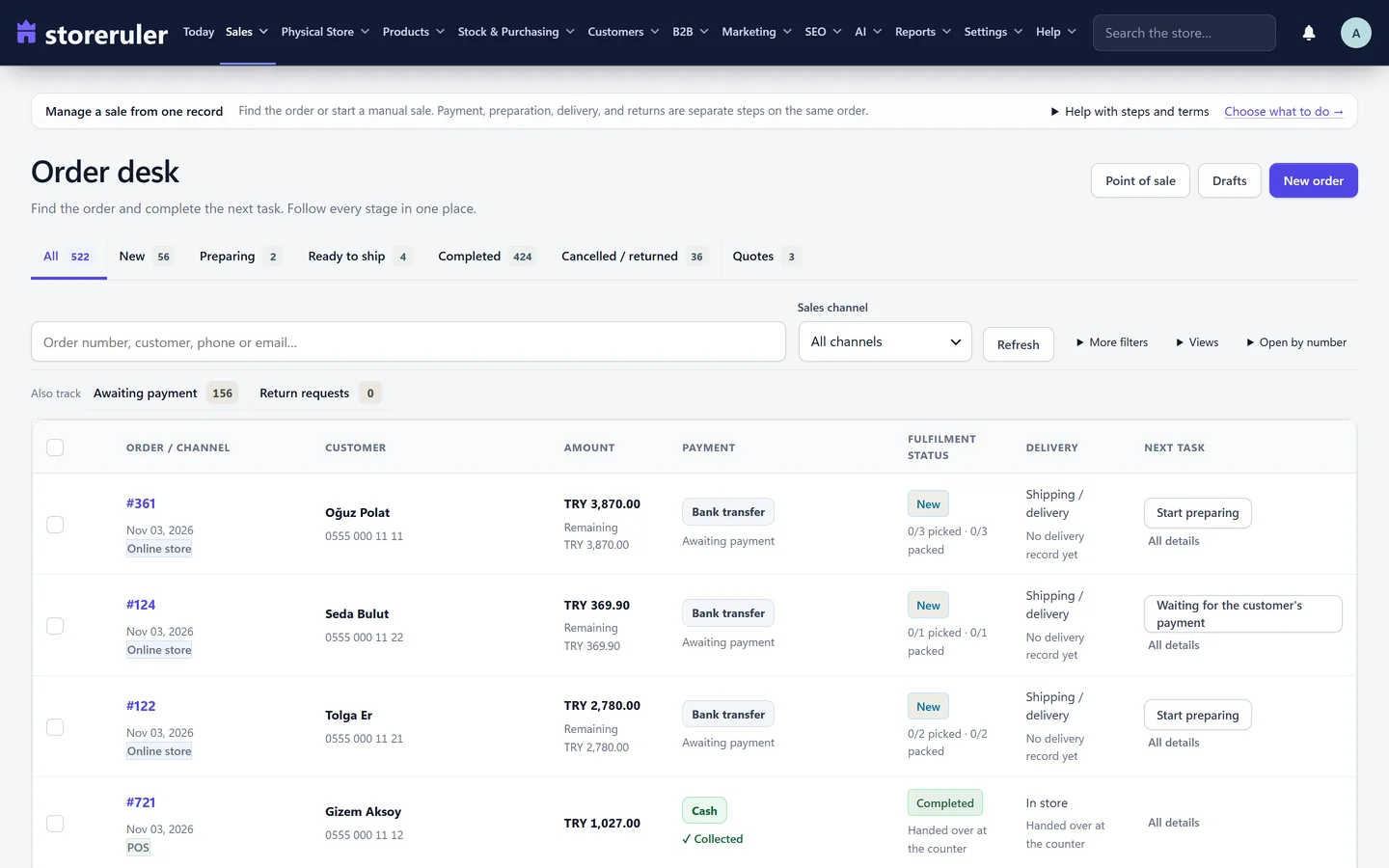
The screenshot shows the order desk of a store on a paid plan, so it has a few extra tabs and buttons. Selecting orders and printing a pick list work the same way in the free version.
The printed list has:
- One row per product, with each variation on its own row and its options, such as "Colour: Red, Size: M", under the name.
- The units still to pick: ordered units, minus refunded units, minus units already marked as picked.
- The SKU, with the barcode under it when the product has one.
- The orders each row goes to, for example "#1021 × 2, #1024 × 1".
- An empty box on each row to tick by hand.
- Rows sorted by SKU, then by name; products without a SKU come last.
- A summary at the top (orders, products, units and the time it was printed) and a list of the orders included, each with the customer's name, shipping or store pickup, and its units to pick.
Cancelled, failed, refunded and draft orders are left out and named at the bottom, so a stray selection never sends you to a shelf. Printing changes nothing in your orders.
After picking: packing and the next step
From the same selection you can print Packing slips: one page per order with the delivery address and the products, without prices. Then open each order to prepare it: confirm every line by scanning or typing its SKU or barcode, and mark the order ready when everything is picked and packed. To move a whole batch at once, the order desk can start preparing the selected orders, or mark them ready, in one step; an order that cannot take the step is listed with the reason.
Because the list leaves out units already marked as picked, you can print a fresh list for the same orders later in the day, and it shows only what is still missing.
Which plan includes it
Pick lists, packing slips and order summaries are in the free StoreRuler plugin on WordPress.org, with no time limit. The paid plans add other order tools, such as manual orders and returns in Pro, and the printouts work the same in every plan. The pricing page lists what each plan adds.
For the exact steps, read the pick lists and packing slips guide, and the order desk guide for stages, filters and saved views. More about daily order work is on the order management page.
Frequently asked questions
Does WooCommerce have a built-in pick list?
No. WooCommerce lists your orders and lets you open or preview each one, but it has no screen that adds up the products of several orders into one printable list. You need a plugin or a spreadsheet for that.
How many orders can go on one StoreRuler pick list?
One printout takes up to 100 orders. The order desk shows 30 orders a page and you tick orders on the page you are viewing, so a bigger batch prints page by page. Each product, and each variation on its own, appears once with the units still to pick and the orders they go to.
Is the StoreRuler pick list free?
Yes. Pick lists, packing slips and order summaries are part of the free StoreRuler plugin on WordPress.org, with no time limit and no account.
Are cancelled orders included on the pick list?
No. Cancelled, failed, refunded and draft orders are left out, and the list names them at the bottom so you know why they are missing.
