
To print a pick list in WooCommerce with StoreRuler, open the order desk, tick the orders and click Pick list. You get one list with each product once, the units to pick and the orders they belong to. Packing slips without prices and order summaries print the same way. All of it is in the free version.
What WooCommerce offers on its own
WooCommerce has no pick list and no packing slip. You can open orders one by one and print the admin page, or read the products off the order emails. As orders add up, that means walking the same shelf several times and copying addresses by hand.
StoreRuler prints three working papers from the orders you select: a pick list for the shelves, a packing slip for each parcel and an order summary when someone needs the prices.
Print a pick list
- Open StoreRuler → Sales. The New or Preparing tab is a good place to start.
- Tick the orders to pick. The box in the header selects every order on the page.
- Click Pick list in the bar that appears. The list opens in a new tab.
- Click Print. The button itself is not printed.
Each row has a tick box, the units to pick, the product with its options (for example colour and size), the SKU with the product's GTIN under it when it has one, and the orders it goes to, such as "#1042 × 2, #1045 × 1". Rows follow the SKU, then the name. The heading counts the orders, products and units and shows when the list was printed.
Only what is still to pick appears: units already picked or refunded are left out. Below the rows, "Orders in this list" names each order with the customer, Shipping or Store pickup and the units to pick. Cancelled, failed and refunded orders are left out and named at the bottom.
Print packing slips
Select the orders and click Packing slips. Each order gets its own A4 page:
- your store's name and address, the order number and date, and the shipping method;
- "Deliver to": the shipping address, or the billing address when the order has no separate one, with the phone number; a store pickup order says Store pickup instead;
- the products with their options, SKU and units, without refunded units;
- the customer's note, when there is one.
Packing slips never show prices. For a single order, open it and use Print packing slip under Other actions.
Print order summaries
Order summaries prints the same page with prices: units and line prices as ordered (refunded units noted), WooCommerce's own totals rows (subtotal, discount, shipping, fees, taxes, payment method, refunds and total), the billing details, the email and the order status. Each page says "This order summary is not a tax invoice." An order summary can be printed for any order except a draft, cancelled ones included. On the order page, Print order summary sits under Other actions.
Confirm each line by scanning
The pick list tells you what to take; the order page records what you took.
- Open the order and click Prepare / hand over on a product.
- Under Which task did you just complete? choose I picked the product from the shelf.
- Scan the product into Product barcode or SKU, or type the code. It must match the product's SKU or its GTIN, UPC, EAN or ISBN code; a wrong code is refused. Leave it empty only when the product has no code.
- Check the quantity and save. Then do the same with I packed the product.
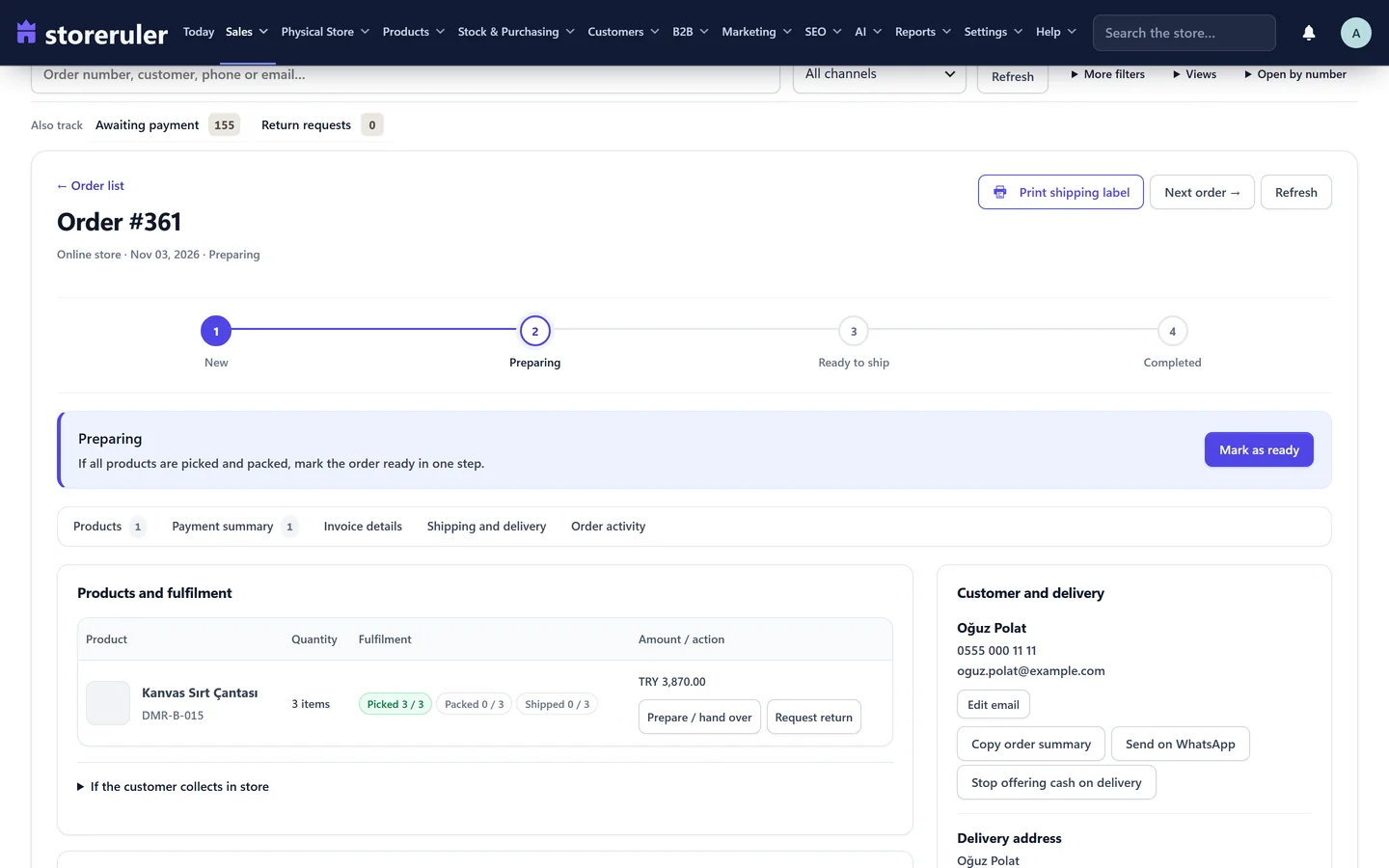
The screenshot comes from a store on a paid plan; the Print shipping label and Request return buttons on it are not in the free version.
When every product is packed, the order moves to Ready to ship. If you picked and packed everything without scanning, Mark as ready marks all remaining products as picked and packed in one step.
Plans and limits
Pick lists, packing slips and order summaries are in the free version and in every StoreRuler Pro plan. One printout takes from 1 to 100 orders. StoreRuler Pro adds printable address labels. None of these pages is an invoice or a receipt; use an invoicing service or plugin that meets your country's rules.
Next step: once the parcel is packed, record the carrier and tracking number as described in Shipping and tracking. The order desk page explains the stages, and order management shows the whole feature.
Frequently asked questions
How many orders can I print at once?
A printout takes up to 100 orders. On the order desk you select orders on the page you are viewing, which shows 30 orders, so print page by page for larger batches.
Can a packing slip show prices?
No. Packing slips leave prices out on purpose. Choose Order summaries instead: the same page with line prices and WooCommerce's totals.
Are packing slips or order summaries invoices?
No. They are working papers for your team and information for your customer. The order summary says that it is not a tax invoice, and StoreRuler issues no invoices or receipts.
What if a product has no SKU or barcode?
Leave the code field empty when you record the pick. A product with an SKU or barcode has to be scanned or typed; one without any code is picked by hand.
