WooCommerce handles refunds, not returns. From an order you can refund lines, put them back into stock and send the money back by hand or through the payment gateway. There is no return request, no approval step, no check of the returned item and no exchange. For those you need a written routine or a plugin that adds them.
What WooCommerce's refund button does
On a paid order, the Refund button opens a form on the order lines. You enter:
- the quantity to refund on each line, and the amount for each line and for shipping;
- whether to restock the refunded items (ticked by default);
- an optional reason, which is saved with the refund.
Then you choose Refund manually, which only records the refund because you send the money yourself, or Refund via the payment method, which asks the payment provider to send the money back when the method supports it. A refund of the whole order sets it to Refunded; a partial refund leaves the status as it was. The customer gets WooCommerce's refund email, and reports subtract the refund.
That is a solid way to move money. It is not a return process: it does not know whether the parcel has arrived, whether the item can be sold again, or that the customer wanted a different size instead of their money.
What a return or exchange needs that a refund does not
- A request. Which order, which item, how many, and why.
- A decision. Approve or reject it before any money or stock moves.
- Receiving and checking. Is the item back, and can it go on the shelf?
- Settlement. Money back the way it came, by bank transfer, as store credit, or towards a replacement.
- For an exchange, a new order for the replacement, and the price difference collected or paid back.
Shipping needs a rule of its own: whether you refund the original shipping, and who pays to send the item back. Put both in your return policy so that each case is not a new discussion.
Common return and exchange mistakes
- Restocking too early. The restock box is ticked by default. A refund saved before the parcel is back, or for a damaged item, adds stock you do not have.
- Exchanges as two loose orders. A refund on one order and a new order for the replacement, with nothing linking them. Months later nobody can tell why the second order was paid only in part, or not at all.
- Editing the original order instead. Swapping the product on a paid order rewrites history: the order no longer shows what was sold, shipped and returned.
- Recorded but not paid, or paid but not recorded. "Refund manually" moves no money, and a bank transfer to the customer that nobody records leaves the order showing no refund at all.
- Refunding shipping by accident, or forgetting that a discounted line is worth less than its list price.
- Store credit as a coupon. A fixed coupon used for less than its value loses the rest; WooCommerce keeps no balance for the customer.
A return and exchange checklist
- Write the policy down: the return period, the condition of the item, who pays return shipping, and whether the original shipping is refunded.
- Record every request on the original order, with the quantity and the reason.
- Approve or reject it, and tell the customer where to send the item.
- When the parcel arrives, check the item before deciding whether it goes back on the shelf.
- Pay back the way the customer paid, or settle as store credit only when the customer agrees.
- For an exchange, create the replacement from the same order and settle the difference in the same step.
- Once a week, compare refunds with your bank or payment provider statements.
Returns and exchanges in StoreRuler Pro
StoreRuler Pro adds the request, the decision and the exchange around WooCommerce's own refund, all from the original order.
Request and approve
On the order screen, each product line has a Request return button: enter the quantity and the reason. Someone with the approval permission can approve the request at once, or later with Approve or Reject. No money or stock moves until the return is completed. The order desk counts the open return requests so they do not get lost.
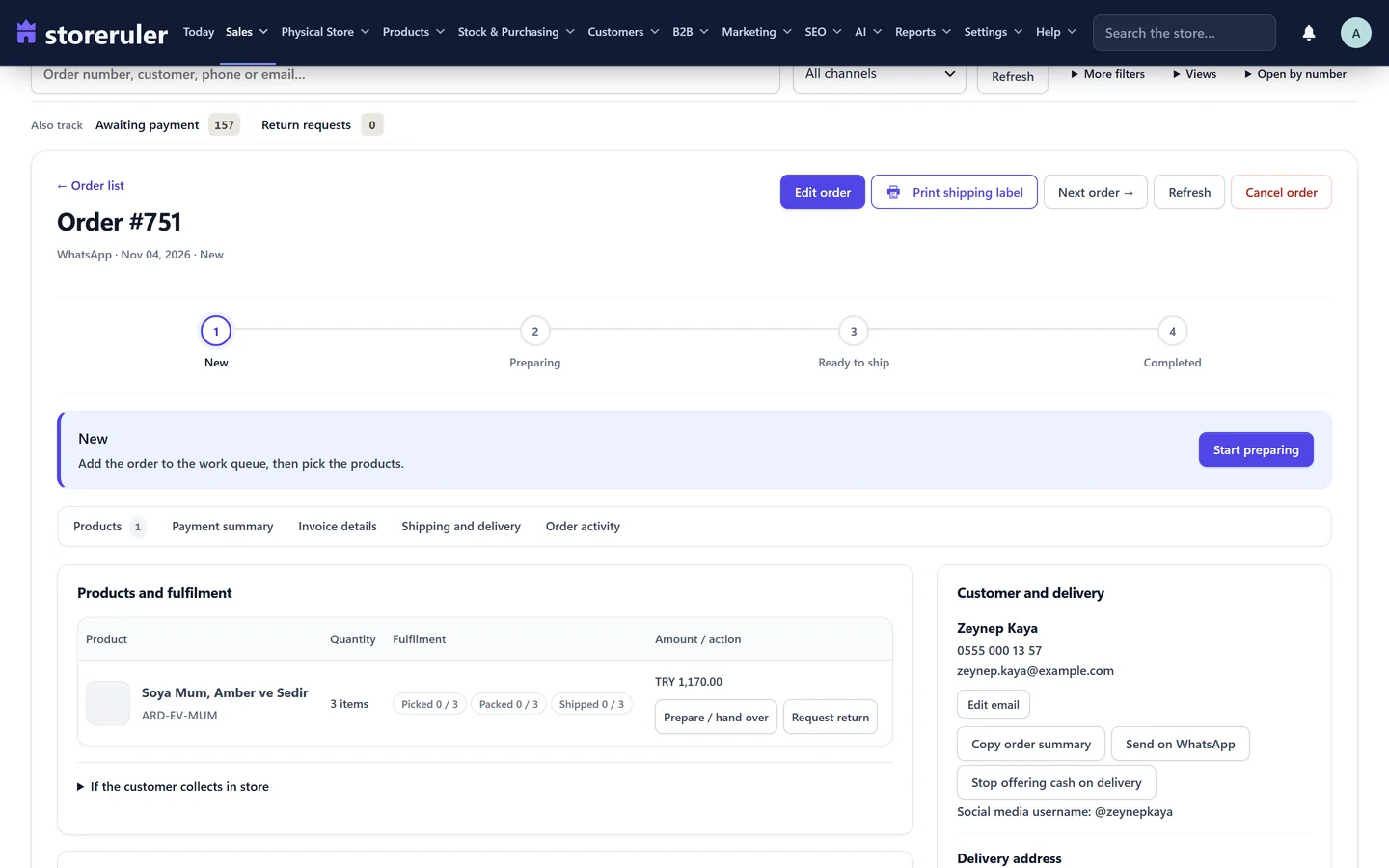
The picture is an example order with Request return on its product line and the Return requests count above. The Print shipping label button there prints an address label from the order's own details.
Complete it as a refund or an exchange
The return window asks for:
- Action: Refund, or Product exchange with the replacement products.
- Returned product: "Quarantine — do not add to stock", which is the default, or "Checked — return to shelf".
- Method: how the money goes back or the difference is collected, such as bank transfer, cash or an external card.
Calculate amounts then shows the preview: the product's return value, any unpaid balance it reduces, the replacement total, the credit carried to the new order, the money to return and the difference to collect. Shipping is not part of a product return. You confirm that the refund or collection really happened, because no money is sent or taken through the bank automatically. If anything changed since the preview, you are asked to calculate again.
On save, StoreRuler records a normal WooCommerce refund on the original order for the returned line and quantity, and restocks it only when you chose the shelf. For an exchange, it creates the replacement as a new order for the same customer and address, linked to the original, with the return value credited to it.
Money back through the payment provider, or as store credit
Refunds through the payment provider are off by default. Someone with the money and approval permissions can turn them on in Settings; even then, you choose it for each return. A return can also be settled as store credit when the customer has an account and agreed to credit instead of money. Store credit is part of gift cards and store credit in Pro.
A few cases are refused on purpose: an order still waiting for its online payment (edit or cancel it instead), and an exchange into a different currency.
Returns and exchanges from the original order are in every paid plan, starting with Pro. Plus adds returns and exchanges at the counter from the receipt; see WooCommerce POS for a physical shop and the pricing page.
Where to start
Write the return policy first, then make every request start on the original order. WooCommerce order statuses explained shows what Refunded and partial refunds mean for the order, and the order desk guide shows where returned orders appear. For orders taken by phone or chat, see phone and manual orders.
Frequently asked questions
Does WooCommerce have a returns system built in?
No. WooCommerce can refund an order, fully or line by line, and put the refunded items back into stock. It has no return request, no approval step and no exchange. Those need a written routine or a plugin.
What does "Restock refunded items" do in WooCommerce?
It adds the refunded quantities back to the products' stock when you save the refund. It is ticked by default, so untick it when the item has not come back yet or cannot be sold again.
How do I handle an exchange in WooCommerce?
Plain WooCommerce has no exchange: you refund the returned item and create a new order for the replacement, then settle any price difference by hand. StoreRuler Pro does both in one step from the original order and links the two orders.
Can I refund a WooCommerce order as store credit?
Not with WooCommerce alone. In StoreRuler Pro a return can be settled as store credit on a registered customer's account, after you confirm the customer agreed to credit instead of money.