To take a phone or WhatsApp order in WooCommerce, open Orders → Add order, choose or enter the customer, add the products and shipping, recalculate and create the order. Leave it in Pending payment and send the customer the payment page link, or record the payment when it arrives. Stock is reduced only once the order leaves Pending payment.
Why orders from chats and calls need a routine
An order that comes in by phone, WhatsApp, Instagram or Facebook arrives in pieces. The product is in one message, the size in another, the address a day later. The price may have been agreed in the chat, and the money comes by bank transfer, by link or at the door. If nobody types it into the store, the sale is invisible: stock is wrong, the customer has no order history and nobody knows which channel actually sells.
Entering every such sale as a WooCommerce order fixes most of that. The order desk, the packing slip, the tracking email and your reports then treat it like any web order.
What WooCommerce's Add order screen does
WooCommerce has a manual order screen built in. On the order list, Add order opens an empty order where you can:
- search for an existing customer, or leave it as a guest and type the billing and shipping addresses;
- add products, a fee or a shipping line, then press Recalculate to work out tax and totals;
- apply a coupon and choose the order status;
- add a customer note and private order notes.
While the order is in Pending payment, the screen shows a link to the customer payment page. The customer opens it and pays with one of your active online payment methods. The order actions can also email the order details to the customer, and for an unpaid order that email includes the link to pay.
What it does not do: it has no field for where the order came from, it holds no stock while the order waits in Pending payment, and it has no place to note "half paid by transfer today". Totals change only when you press Recalculate, so an order saved without it can carry the wrong total.
Common mistakes with manual orders
- The last unit sells twice. A Pending payment order reduces no stock, so the same item can sell online while you wait for the transfer.
- Processing before the money is in. Moving the order to Processing to "keep the stock" stores a paid date and counts the sale as paid.
- An old or wrong price. The price agreed in the chat is not the price in the shop, or a discount is given twice.
- A missing phone number or address. The carrier needs both, and you only notice at the packing table.
- Emails nobody expected. Status changes send WooCommerce's usual customer emails. Decide before you save whether this customer should get them.
- Two orders for one sale. The customer orders on the website as well "to be sure", and both get shipped.
- No channel recorded. Months later you cannot tell whether Instagram or the phone brings the sales.
A checklist for every phone or social media order
- Search for the customer first, by phone number or email, so the order joins their history.
- Check stock before you confirm anything in the chat.
- Write the agreed price or discount into the order, not only into the chat.
- Get a phone number and a full delivery address, or note that the customer collects.
- Note the channel and the social media username in the order.
- Decide how the customer pays: a payment link, a bank transfer, cash on delivery or cash in person.
- Hold the stock while you wait for the money, and record the payment the day it arrives.
- Send the customer the order summary or payment link, then follow the order on the order desk like any other.
Manual orders in StoreRuler Pro
StoreRuler Pro adds a New sale / order screen that follows that checklist on one page. If you have added StoreRuler to your phone's home screen, Pro adds a New sale / order shortcut to it.
- Where did the sale come from? Instagram, WhatsApp, Facebook, Phone, Dealer / B2B, Other or Store / in person. For the three social channels a social media username field appears. The channel is saved on the order, and the order desk can filter by it.
- Build the cart. Scan or type a product name, SKU or barcode; a product with options asks which option was ordered. Each line shows the stock on hand, and a product that is out of stock is refused. Add a cart discount in percent and a shipping fee, or choose hand over / store pickup.
- Customer. Search for a registered customer, or enter a name and phone number, which are required. "Save as a customer account" creates a WooCommerce customer account from the details without emailing the customer.
- Payment. Bank transfer / cash / record manually later, an online payment link, or cash on delivery.
- Notes. A note for the customer, shown in their emails, account and on the packing slip, and an internal note only your team sees.
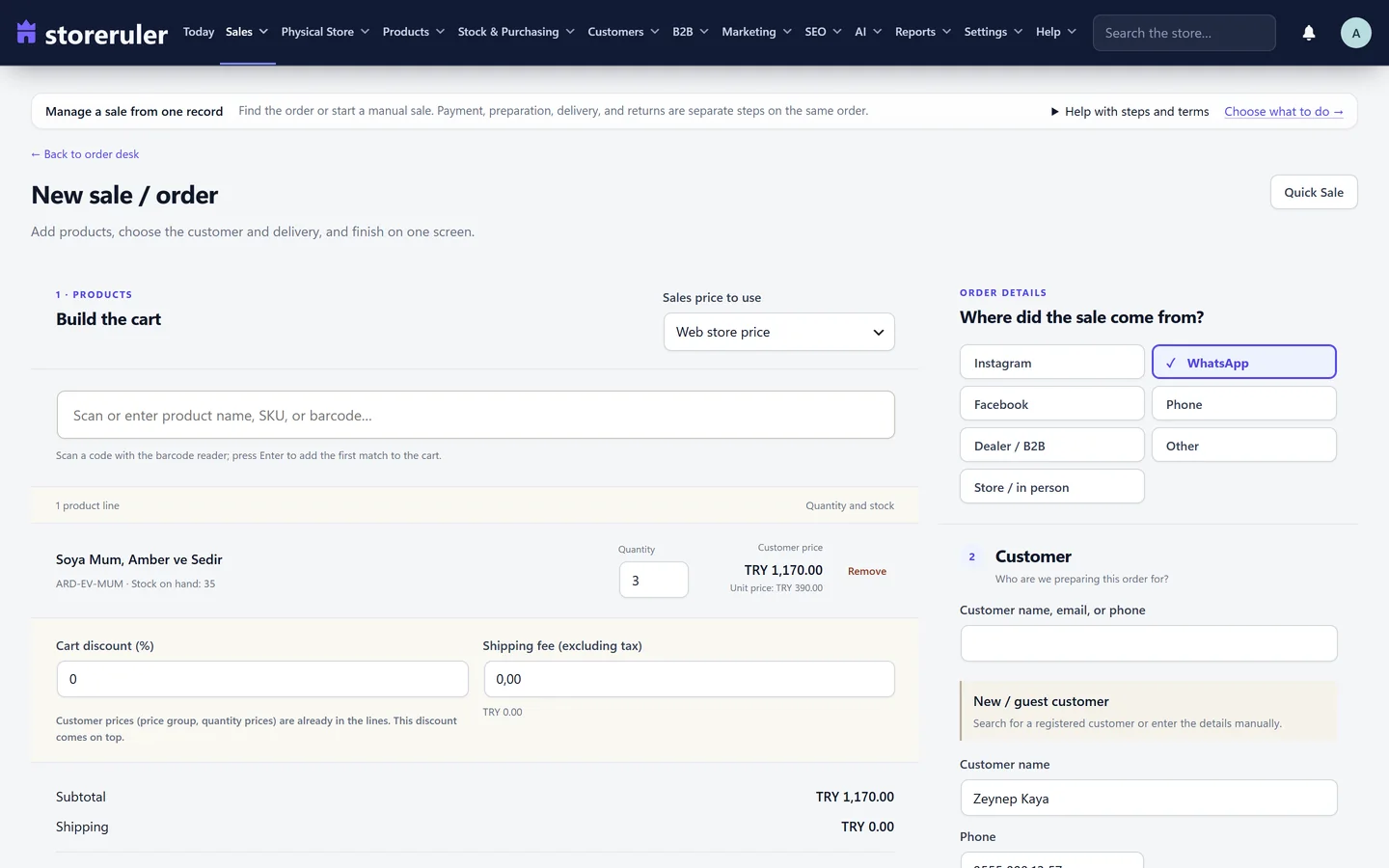
The picture is an example store with every plan's menus. The Quick Sale button at the top comes with Plus.
The total is checked again before the order is made; if a price or tax changed in the meantime, you are asked to refresh it. Create order and reserve stock then saves a normal WooCommerce order that waits for its payment (On hold in WooCommerce) with the stock held for it. WooCommerce's "on hold" email is not sent for these orders, and you can untick "E-mail the customer about this order" for a customer who should get no order emails at all. Save draft keeps an unfinished order without touching stock or payment; drafts are visible only from your own account.
From a customer's card you can also start a new sale for them, or start from one of their earlier orders. Only products still on sale are copied, at today's prices; the old discount, payment and address are not.
Sending a payment link
With "Send online payment link", the order shows a Payment link ready box after it is created. You can copy the link, email it, open it as a WhatsApp message, check the payment page yourself, or copy a ready message with the amount and the link. The link is WooCommerce's own payment page for that order, where the customer chooses one of your active online payment methods. If no online payment method is active, the box says so and links to WooCommerce's payment settings.
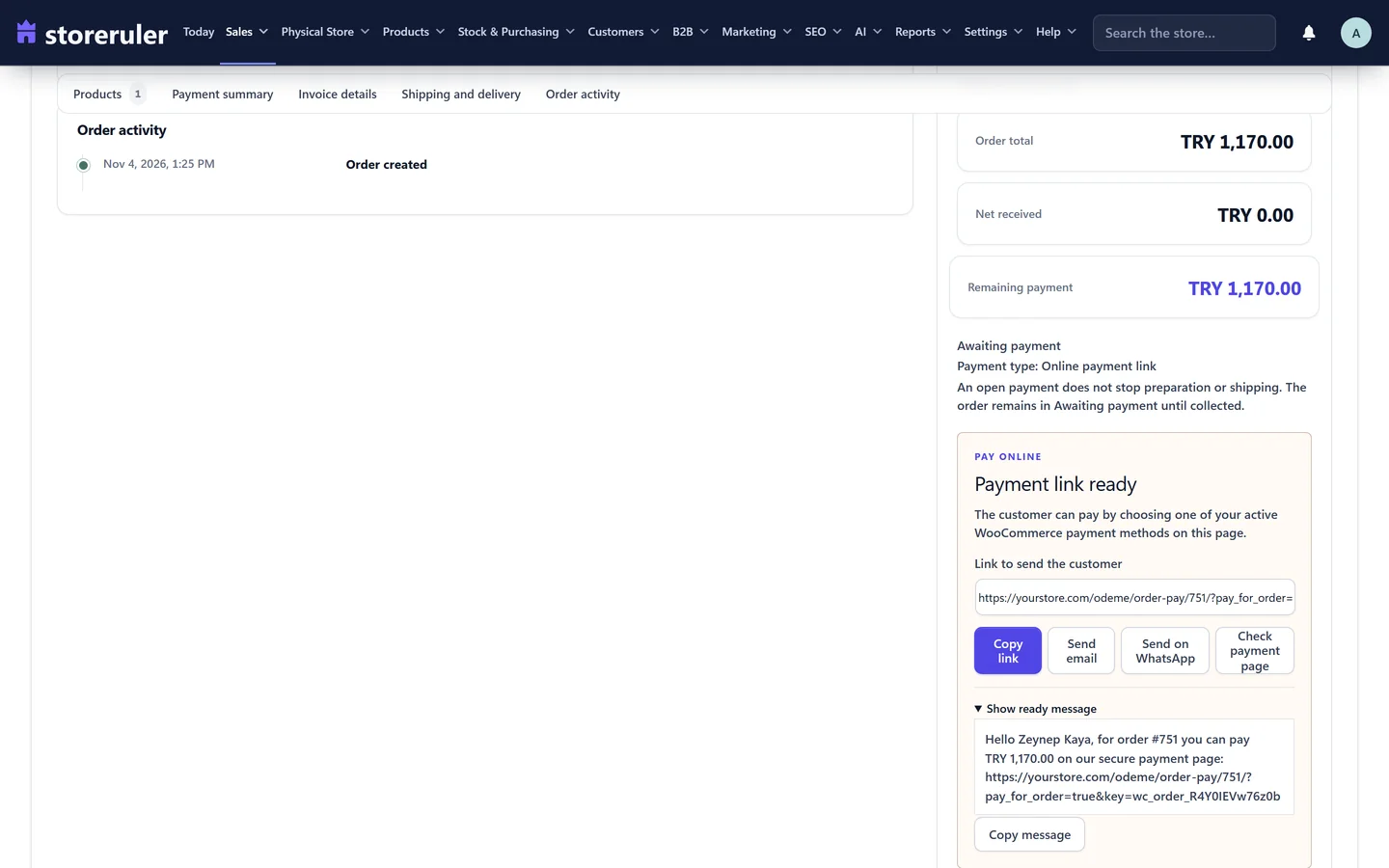
For a bank transfer or cash, the order stays awaiting payment until someone records the money. An open payment does not block preparing or shipping the order. For cash on delivery, see cash on delivery risks.
Manual orders, payment links from the order desk and recorded collections are in every paid plan, starting with Pro. See the pricing page.
After the order is in
A manual order then moves through the same stages as a web order: picking, packing, shipping and the tracking message. WooCommerce order statuses explained shows what each status means for a sale that is not yet paid, and returns and exchanges covers what happens when the customer sends something back. The order management overview shows the whole flow.
Frequently asked questions
Can I create an order manually in WooCommerce without a plugin?
Yes. Open Orders, click Add order, choose or enter the customer, add the products and a shipping line, recalculate the totals and create the order. It works well for an occasional order; a busy phone or chat line usually needs a faster screen.
How do I send a customer a payment link for a manual WooCommerce order?
Leave the order in Pending payment. The order screen then shows a link to the customer payment page, and emailing the order details to the customer includes a link to pay. The customer pays with one of your active online payment methods.
Does a manual WooCommerce order reduce stock?
WooCommerce reduces stock when an order moves to On hold, Processing or Completed, not while it waits in Pending payment. In StoreRuler Pro, a manual order holds its stock from the moment it is created.
Is manual order entry in the free StoreRuler plugin?
No. The New sale / order screen is in StoreRuler Pro and the plans above it. The free plugin shows every order, including ones you enter in WooCommerce, on the order desk.