
HPOS (High-Performance Order Storage) keeps WooCommerce orders in their own database tables instead of the WordPress posts and postmeta tables. It has been the default for new stores since WooCommerce 8.2. For a store owner the job is short: check that your plugins are compatible, let the existing orders sync, switch, test, and keep a backup.
What HPOS changes, in plain words
For years WooCommerce stored each order as a WordPress post, with every detail (address, totals, payment method) as a row in the postmeta table. Pages, products and orders all shared those two tables, and finding orders meant searching a very long list of loose details.
With HPOS, orders get dedicated tables with your database prefix: wc_orders, wc_order_addresses, wc_order_operational_data and wc_orders_meta. Common details have their own columns and indexes, so order screens, searches and checkouts need less work from the database.
What does not change: your orders, customers, emails and reports stay the same, and you keep working in the same WooCommerce screens. The address of the orders list does change, from edit.php?post_type=shop_order to admin.php?page=wc-orders, so update any bookmarks.
How to see which order storage your store uses
- In WooCommerce: WooCommerce → Settings → Advanced → Features, under "Order data storage". It shows High-performance order storage or WordPress posts storage, and the compatibility mode option.
- From the orders list address:
page=wc-ordersmeans HPOS. - In StoreRuler: Store health under StoreRuler → Settings → System has an Order storage card that names the storage in use, and the support report lists it too.
How to check HPOS plugin compatibility
Plugins that work with HPOS declare it to WooCommerce. WooCommerce warns about active plugins that have not, both on the Features settings and on the Plugins screen, and does not let you switch to HPOS while incompatible plugins are active.
A missing declaration does not always mean a plugin breaks, but treat it as a stop sign:
- update the plugin; many added the declaration in a later version;
- ask the developer, or check the plugin's changelog for "HPOS" or "custom order tables";
- look at your own code snippets: anything that reads orders with
get_post_meta()or queries the posts table forshop_orderwill miss HPOS orders. Code should use WooCommerce's order functions such aswc_get_order()and$order->get_meta()instead.
Sync and compatibility mode
On the same settings screen, the compatibility mode option keeps the posts tables and the HPOS tables in sync. While it is on:
- each new or changed order is written to both storages;
- existing orders are copied in the background, in batches, through WooCommerce's scheduled actions;
- WooCommerce shows how many orders still wait to be synced, and you switch only when that reaches zero.
Once you have switched and everything works, you can turn compatibility mode off so each order is written only once. Many owners leave it on for a few days first, because that keeps the way back open.
On large stores the background copy can take a while, and it only moves when WordPress's scheduled tasks run. If you use WP-CLI, WooCommerce has commands for this, such as wp wc hpos count_unmigrated and wp wc hpos sync.
A safe HPOS switching checklist
- Take a full database backup.
- If you can, try the switch on a staging copy first.
- Update WooCommerce and all plugins.
- Check the incompatible plugins list, and solve or remove each one.
- Turn on compatibility mode and wait until no orders are left to sync.
- Switch to high-performance order storage.
- Test the jobs you do every day: a checkout, an order search, a status change, a refund, the order emails, your exports and reports.
- Watch the WooCommerce logs for a few days.
- Turn compatibility mode off once you are sure you will not switch back.
Common HPOS pitfalls
- Old snippets in the theme. A custom function that reads orders from the posts table keeps "working" but sees nothing new.
- Exports and accounting connections. Tools that read the database directly may need an update or a new setting.
- A sync that never finishes. If scheduled tasks do not run, the copy stalls. Check WooCommerce → Status → Scheduled Actions for pending and failed actions.
- Switching back after turning sync off. Turn compatibility mode on again and let it sync before you switch storage.
- Expecting HPOS to fix every slow screen. It helps the database work behind orders. A slow admin can also come from plugins, hosting or scheduled tasks piling up, so measure before and after instead of assuming.
- Forgetting the backup. The switch itself rarely goes wrong, but a plugin that writes orders the old way can. A backup from just before the switch is the cheapest way back.
StoreRuler with HPOS and with posts storage
StoreRuler declares compatibility with HPOS and also works with the older posts-based storage. Where it reads orders directly, for example to count a customer's earlier orders, it reads the HPOS tables when HPOS is on and the posts tables otherwise. It has no order storage setting of its own: it checks the storage WooCommerce uses, so you switch in WooCommerce and nothing needs changing in StoreRuler.
Orders stay WooCommerce records either way. The order desk shows the same orders and stages before and after the switch.
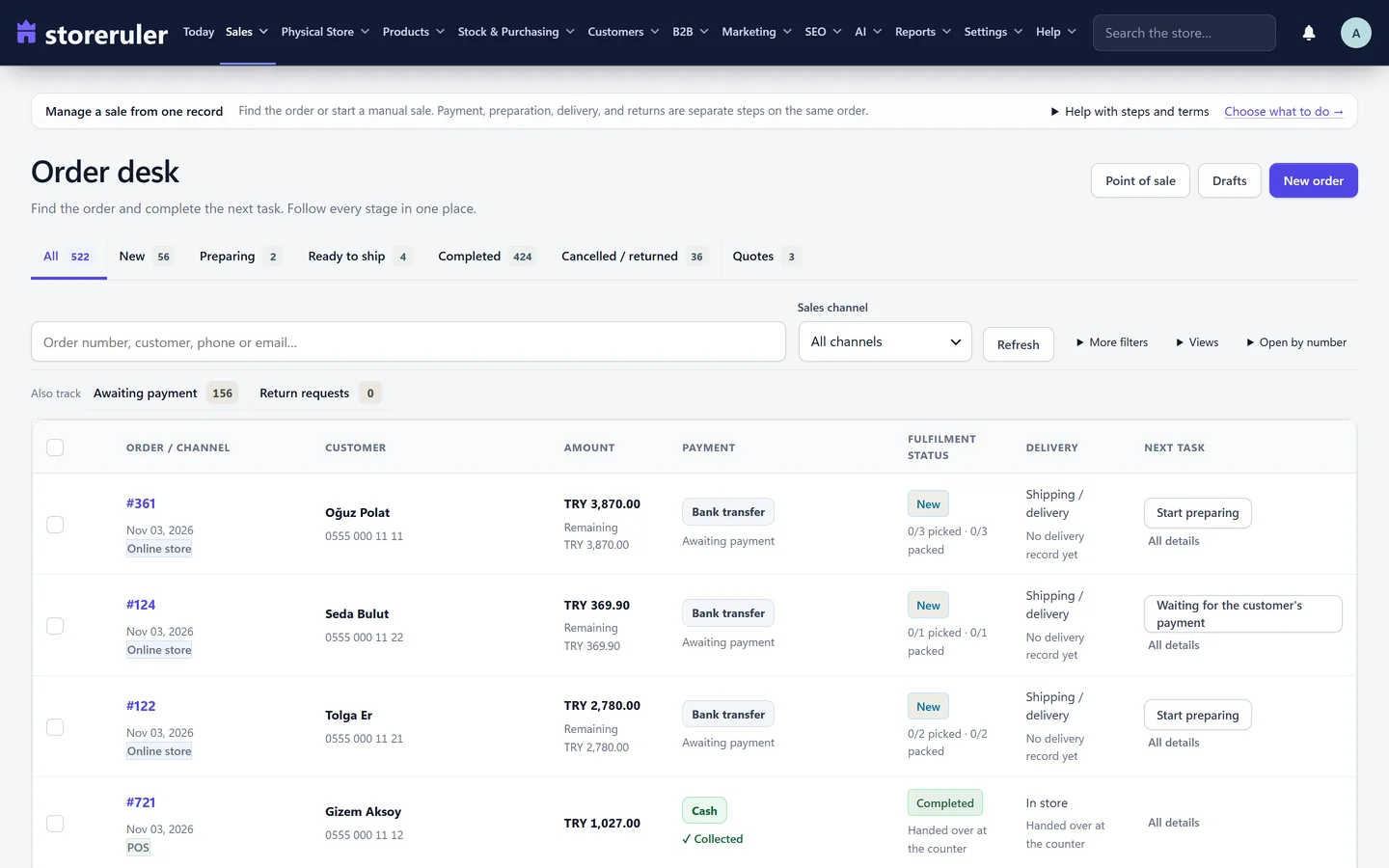
The picture comes from an example store on a paid plan. Order storage support is the same in the free version and in every paid plan.
Before and after a switch, open Store health under StoreRuler → Settings → System: besides the order storage, it checks the WordPress scheduler that the background sync depends on. The store health guide explains each check, and getting started covers what StoreRuler needs from your hosting. For what the order statuses themselves mean, see WooCommerce order statuses explained.
Frequently asked questions
What does HPOS stand for in WooCommerce?
High-Performance Order Storage. Orders are kept in their own database tables instead of the WordPress posts and postmeta tables that also hold your pages and products.
Do I have to switch to HPOS?
Open WooCommerce, then Settings, Advanced, Features. If both order storage options are offered, you can still choose. New stores start on HPOS, and WooCommerce recommends it.
Does StoreRuler work with HPOS?
Yes. StoreRuler declares compatibility with HPOS and also works with the older posts-based order storage. It has no setting of its own for this: it follows the storage WooCommerce uses.
Can I switch back from HPOS to posts storage?
Yes, as long as both storages are in sync. Keep compatibility mode on for a while after the switch, so switching back is a setting change rather than a data migration.
