
In the free StoreRuler plugin, StoreRuler → Marketing → Live carts shows the WooCommerce carts shoppers are filling now and the ones left unchanged for over an hour. Waiting customers collects back-in-stock requests with a consent box and sends each shopper one email when the product returns. Live carts are on by default; requests stay off until you turn them on.
Why look at carts before they become orders
WooCommerce keeps a shopper's cart in its session but has no screen that lists the carts in your shop. You see a sale only after checkout. A list of open carts shows which products people are about to buy, which ones they leave behind and where those visitors came from, so you can check prices, stock and shipping costs before you lose more of them.
Read the live carts
- Open StoreRuler → Marketing and choose Live carts.
- Read the counters on top: Active now, Waiting over one hour, Registered customers and Anonymous carts.
- Switch between Waiting over one hour and Active now. Active carts changed in the last hour; waiting carts have not changed for an hour.
- Each cart shows its products, an estimated total, the time since the last change and where the shopper came from, such as Instagram, Google search, Google Ads or Yandex, as WooCommerce's order attribution recorded it.
- On a signed-in customer's cart, choose Open customer profile to see their orders and contact details.
Carts of your own signed-in team are marked Team (test). They appear among the active carts so you can try the screen, but they are not counted.
What live carts keep, and for how long
- Products, quantities, an estimated total, the currency, the times of the first and last change, and the source channel with the referring site's name.
- No guest name, email address, phone number or session token.
- Cart data is deleted after 72 hours, or earlier when the cart is emptied or ordered.
- Turn off opens a confirmation; Turn off and clear summaries deletes StoreRuler's cart summaries at once. Your customers' WooCommerce carts and orders stay as they are.
Turn on back-in-stock requests
- Open StoreRuler → Marketing → Waiting customers and click Turn on requests.
- Tick Show the request box on out-of-stock products. and click Turn on.
- Out-of-stock products and variations now show a short form: an email address, a consent tick that reads "Send me one email when this product is back in stock. My address is used only for this." and a Notify me button.
- Leave Email waiting shoppers automatically when a product is back in stock ticked, and each waiting shopper gets one email as soon as the product is in stock again. Untick it to send by hand with Email them now.
- Click Edit the email to change the WooCommerce email called Back in stock under WooCommerce → Settings → Emails.
The table lists each product with Waiting (how many shoppers), Waiting since, Stock and the next task. That count is a simple guide to what to reorder. Repeated requests from one network or one inbox are limited, and the visitor's IP address is used only in hashed form for that limit.
Turning requests off removes the form from product pages. Waiting requests are kept but not emailed while requests are off. Sent or cancelled requests are deleted 90 days after the request, and requests still waiting after one year.
Searches with no results
Under Searched but not found (30 days) on the same screen you see what shoppers typed into your shop search and did not find, most searched first, with Times and Last searched. Only the words are kept: email addresses, links, phone numbers and your team's searches are left out. Check products opens the matching product search, and Dismiss hides a term until someone searches for it again. Stock the product, or add the word to an existing product so the next search finds it.
Which plan includes what
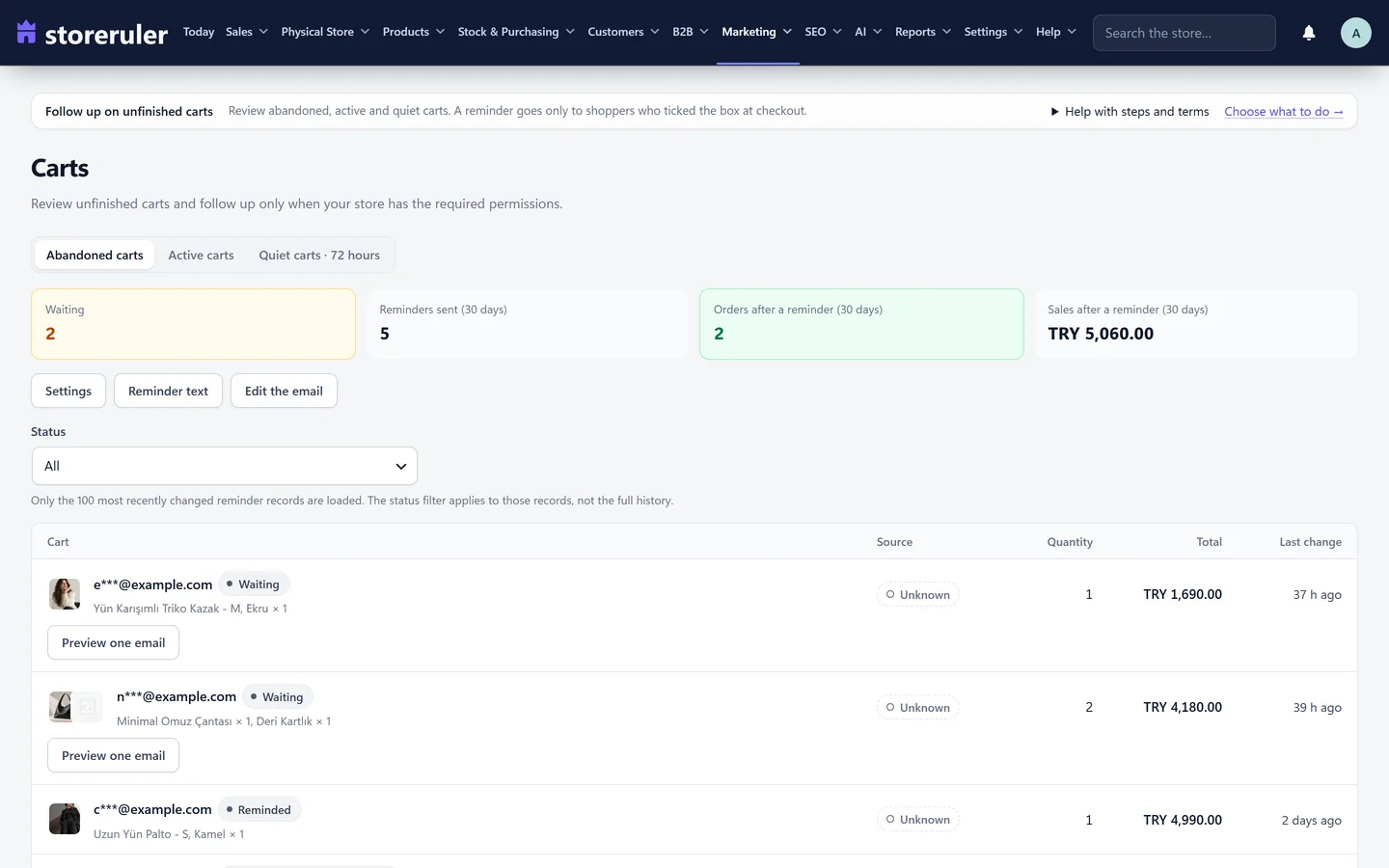
Live carts, back-in-stock requests and searches with no results are in the free version and in every StoreRuler Pro plan. Cart reminder emails are part of StoreRuler Pro: they are off until you turn them on and go only to shoppers who ticked the consent box. See marketing tools and pricing.
Mention live carts and back-in-stock emails in your privacy notice. Next, read back-in-stock notifications with consent or set up reliable store email so these emails arrive.
Frequently asked questions
Does the live cart screen send anything to shoppers?
No. It is a view for your team. No email, text message, payment or stock change is triggered. Cart reminder emails are part of StoreRuler Pro and go only to shoppers who ticked the consent box.
Can I see who an anonymous visitor is?
No. Guest names, email addresses, phone numbers and session tokens are not stored. A signed-in customer's cart links to their customer card.
Does a back-in-stock request reserve stock?
No. It is a request for one email when the product is back, not an order.
Why was no back-in-stock email sent?
Emails go out only while requests are on, the product is published and in stock, and the Back in stock email is switched on under WooCommerce → Settings → Emails.
