
To find WooCommerce products with a missing SKU, price, photo, barcode or category, open StoreRuler → Products in the free plugin. A row of checks above the list counts each gap, for example Missing SKU · 12. Click a check to list only those products, then fix each one in its row or in its product window.
What WooCommerce offers on its own
WooCommerce's own Products screen filters by category, product type and stock status, and sorts by SKU or price. It has no filter for products without a SKU, a photo or a barcode, so many shops export a CSV and search it in a spreadsheet. That gives you a list once; it is out of date the next time someone adds a product.
StoreRuler keeps the checks next to the products themselves. It works on the same WooCommerce records, so there is nothing to import and nothing to sync back.
The product health checks
The buttons above the list each show a count. All clears the check again.
| Check | What it finds |
|---|---|
| Out of stock | Products and options whose stock status is out of stock. |
| Low stock | Products whose managed stock is above 0 but at or below WooCommerce's low-stock threshold. |
| Missing price | No regular price. |
| Missing SKU | No SKU. |
| No photo | No product image, on the option or on its parent product. |
| No category | No category other than the store's default "Uncategorized". |
| No barcode | No barcode saved on the product or option. |
The search box, Product name, SKU or barcode, works together with the checks, and Publication status also shows drafts, products pending review, private and scheduled products. Save this filter under Saved views keeps a search and a check under a name, for you or for the whole team.

Fix gaps right in the list
- Open StoreRuler → Products and click a check, for example Missing price.
- For a simple product, type the Online price or Sale price in its row and click Save. Only that product changes.
- For a product with options, click Review prices, read the preview and confirm. The regular or sale price of every option changes together.
- Look at the check again: the count goes down as you work.
If someone changed the same product in another screen while you were typing, StoreRuler does not overwrite their change. It shows the current values and asks you to enter yours again if it is still needed.
Use the product window
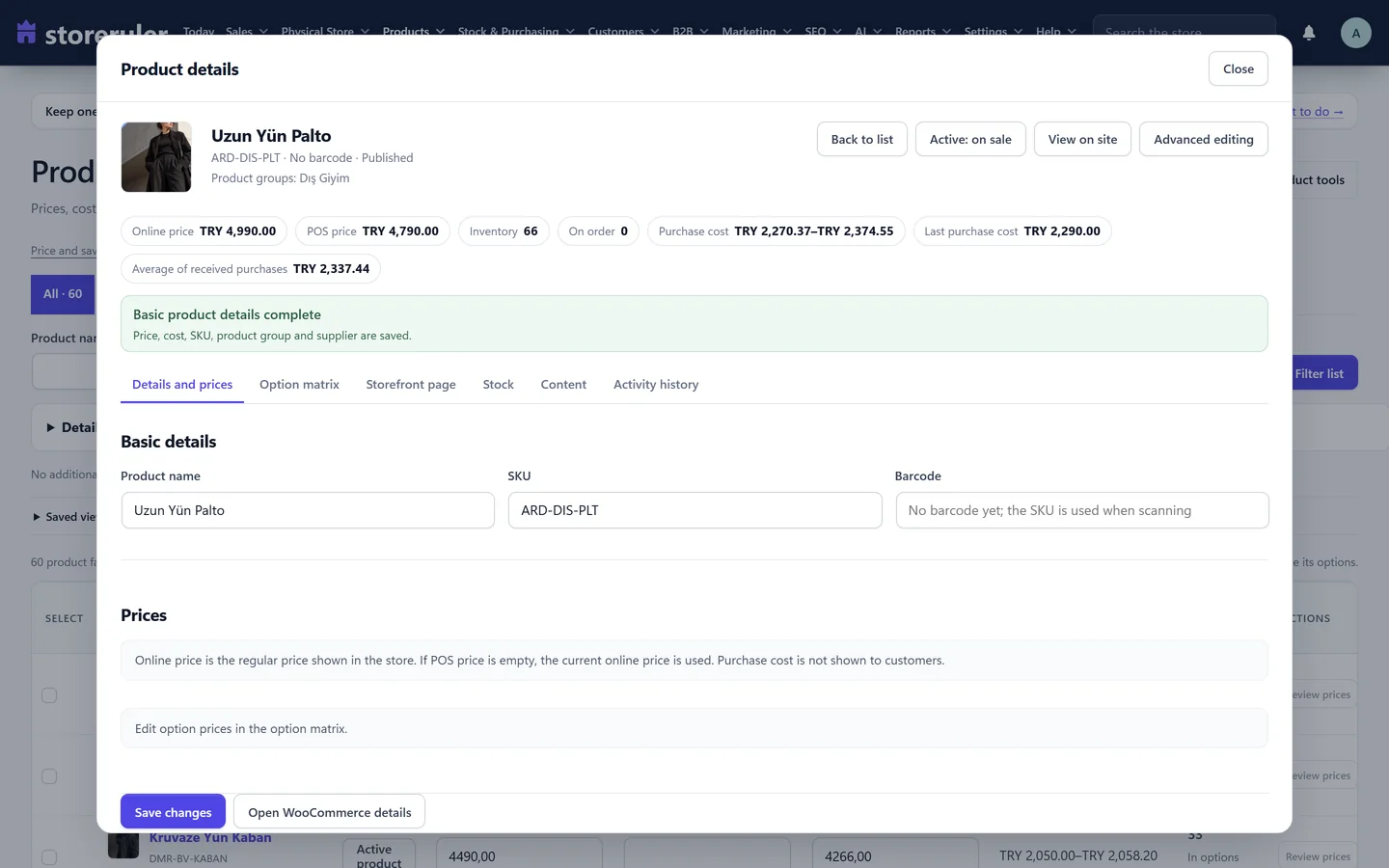
Open a product from the list to see its details, prices and stock in one wide window.
- Details and prices: Product name, SKU, Barcode, the online selling price and the sale price. Click Save changes.
- Option matrix (products with options): a table of every option, for changing SKUs and prices together.
- Content: the product's groups and tags, a link to WooCommerce's editor for the image, description and options, and the AI text described below.
In the free version the list and the window show stock but do not change it. Change stock in the product's WooCommerce editor, on its Inventory tab.
Add a new simple product
- Click Quick add product above the list.
- Under What kind of product?, choose Simple product and click Continue. Product with options opens WooCommerce's own product editor instead, where colours, sizes and other options are created.
- Fill in the product name, SKU, barcode, product group, online selling price, sale price, physical shelf stock and photo.
- Under When should shoppers see it?, choose to publish now or to save a draft, then click Save product or Save as draft.
Write a description with AI, using your own OpenAI key
The free version can draft a description or a photo's alt text for one product at a time.
- In the product window, open Content and then Description and photo text with AI.
- The first time, an administrator clicks Connect your OpenAI key, pastes a key from platform.openai.com and clicks Save the key. It is stored encrypted on your site and never shown again.
- Click Write the description (you can add a note for the AI) or Write the photo's alt text, then Write the draft.
- In Review the AI draft, edit the text and click Apply to the product. Undo the last AI change puts the old text back.
Only the product's name, texts, categories, tags and visible attributes, or its main photo, go to OpenAI; no price, stock, order or customer data. You pay OpenAI for what you use. Your team can ask for 20 drafts a day by default; an administrator changes this with Change the daily limit (1 to 999).
What needs StoreRuler Pro
Bulk editing across many products, products with options built inside StoreRuler, product readiness and AI texts for the whole catalog at once (AI Studio) are part of StoreRuler Pro. Everything on this page works in the free version with no time limit. See product management and pricing.
Next step: the Product record completeness card in Store health counts the same gaps across the store. See Store health and email, or read how to find products missing a SKU, price or image.
Frequently asked questions
Do I have to copy my products into StoreRuler?
No. StoreRuler reads and changes the same WooCommerce products. A change made in StoreRuler shows in WooCommerce's screens, and the other way round.
Why is a product with options not counted under No photo?
An option without its own photo uses the photo of its parent product, and an option without its own category uses the parent's category. It counts only when the parent has none either.
Can I change stock in the product list?
Not in the free version. The list shows stock; you change it in the product's WooCommerce editor, on its Inventory tab.
Is bulk editing free?
In the free version you can edit prices in the list and set the price of every option of one product at once, after a preview. Bulk editing across many products is part of StoreRuler Pro.
