In StoreRuler Pro, StoreRuler → Marketing → Campaigns creates automatic web discounts with rules, dates and limits, and shows the result on a sample basket before you save. Marketing → Carts sends a cart reminder email, but only to shoppers who ticked the consent box at checkout. Both stay off until you set them up.
What WooCommerce does on its own
WooCommerce coupons work when the shopper types a code, and sale prices are set product by product. There is no rule that discounts a basket by itself, such as "buy 3, pay 2" or free shipping above an amount, and no email for a cart that was left before payment. StoreRuler adds both; your coupons and sale prices keep working.
Create a web campaign
Click New campaign. The editor has five steps.
- Choose an offer. Pick a ready card, such as Buy three, pay two, Free shipping threshold or Weekend offer, or a campaign type: Percentage off, Amount off from a minimum basket, Buy X, pay Y, Discount on every Nth item, Free shipping from a basket amount, A free gift product from a basket amount, Buy these, get those at a discount, Quantity tiers or Basket amount tiers. Click Continue →.
- Rules. Type the Name customers see in the cart (up to 80 characters) and the discount. Tier campaigns take up to four tiers, each with a bigger discount than the one before.
- Products and customers. Under Applies to, choose All products, Selected products, Selected categories, Selected brands or Choose products with a rule. Under Customers, choose Everyone, Signed-in customers, A customer group, First-order customers, Customers returning after a break or Customers with enough paid orders. Tick Do not discount products that are already on sale if sale items should keep their own price.
- Dates and limits. Set Starts and Ends, Total uses and Uses per customer (0 means unlimited), and an optional Customer code. The Weekend offer and Happy hours cards add weekdays and a time window in your shop's time zone.
- Preview and save. Choose Start now or Save paused, check the preview and save.
A rule picks products by name, total sales or days since the last sale. The matching list is frozen when you save and may hold up to 200 products.

Test it on a sample basket
The last step loads real products from your catalogue into a sample basket. Change the Example quantity of each product and click Refresh product preview. You see each price before and after the discount, the basket discount, whether shipping would be free, and how far the basket is from the next tier. If another campaign would save this customer more, the preview names it, because that campaign would apply instead.
In the campaign list each campaign shows its state: Active, Scheduled, Paused, Ended or Usage limit reached. Pause stops it for new baskets at once.
What the shopper sees
When a basket qualifies, the discount appears in the cart and checkout under the campaign's name. Only one discount campaign applies to a basket, the one that saves the customer most; free shipping is the only campaign added on top. The discount is stored on the WooCommerce order like a coupon line. On the same screen, Sales quotas sets the most one customer may buy of chosen products in a day, week, month or year.
Turn on cart reminders
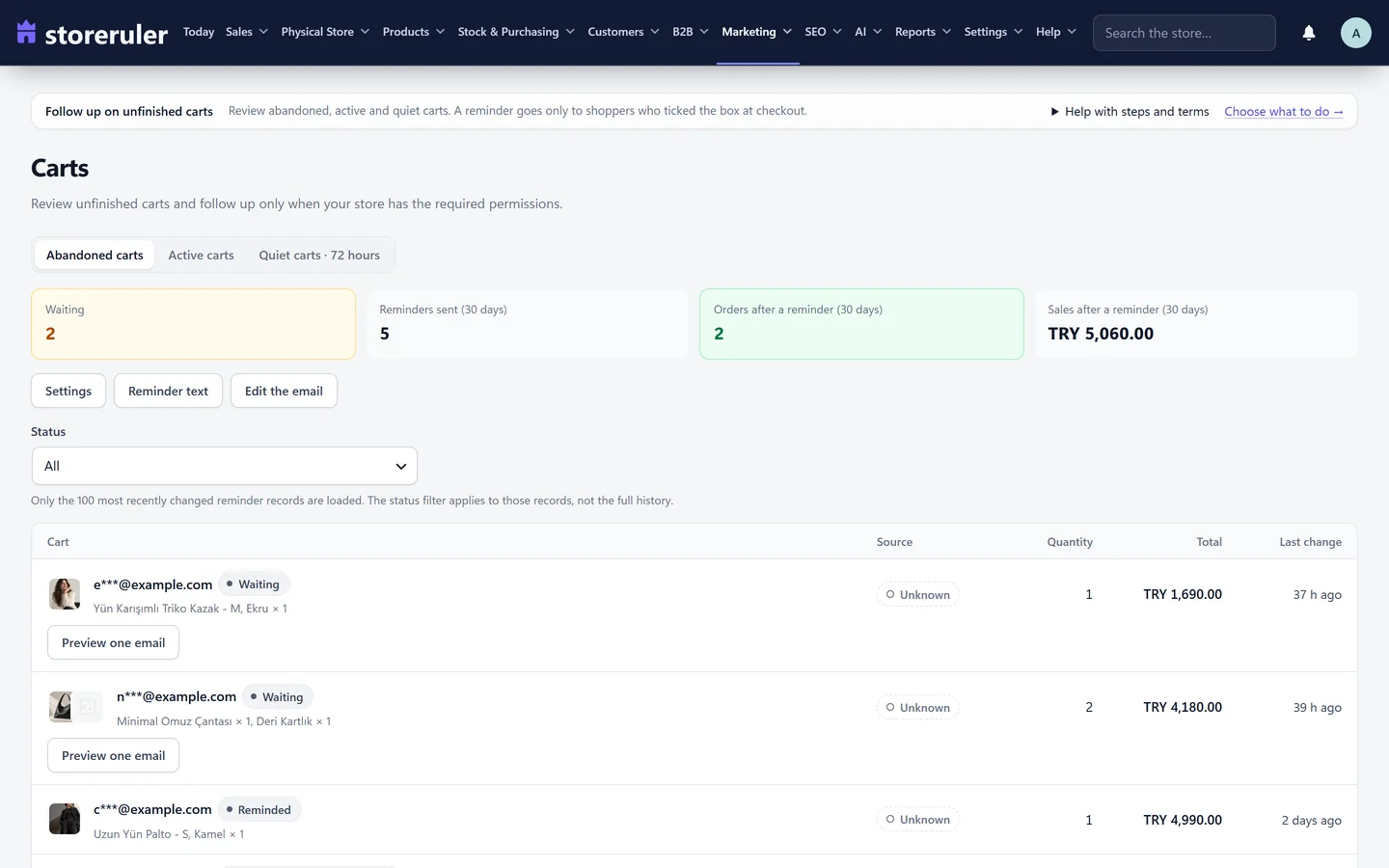
- Open StoreRuler → Marketing → Carts and stay on the Abandoned carts tab.
- Click Settings. Set Reminders to On.
- Choose a Sending mode: Automatic follow-up, or Manual only to send each email yourself.
- Set First email after (hours), from 1 to 24 (2 by default). Leave Second email after at Off, or choose 8 to 21 days.
- Tick the statement that your store collects the required marketing permissions, then click Save.
- Optional: Reminder text changes the subject (up to 160 characters) and the text (up to 1,500). Edit the email opens the WooCommerce email called Cart reminder; it must stay switched on there.
In manual mode, Preview one email on a waiting cart shows the recipient, the products and the email. A cart can be sent after it has been left alone for 30 minutes.
How consent works
When reminders are on, checkout shows an unticked box: "If I do not complete my order, remind me about my cart once by email." It appears under the email address in the block checkout and among the billing fields in the classic checkout. Only shoppers who tick it get a record with their address. The tick is not saved to the order or the customer account. Your own statement is not customer consent; keep your permission records and mention cart reminders in your privacy notice.
The email lists the products that can still be bought, the cart total and a Return to your cart button that puts the products back in the cart. The link works for 7 days. Delete my reminder details removes the address and stops further reminders. A placed order ends the waiting reminder, and the counters show Orders after a reminder (30 days) and Sales after a reminder (30 days).
Campaigns and cart reminders are part of StoreRuler Pro. The live carts list is free; see live carts and back-in-stock emails. For reminders that arrive, set up store email first. More in marketing tools and pricing.
Frequently asked questions
Can two campaigns apply to the same basket?
Only one discount campaign applies: the one that saves the customer most. Free shipping is the only campaign that is added on top of another. A campaign with a code applies only when the shopper enters the code, and then replaces the automatic discount.
Who gets a cart reminder email?
Only shoppers who ticked the unticked box at checkout and then did not place an order. Your signed-in team never gets one, and one email address gets at most one reminder a week.
How many reminders does a shopper get?
One. You can add a second email 8 to 21 days later under Second email after; it is off (0) until you choose a number of days.
What happens to campaigns on placed orders?
The discount is saved on the WooCommerce order, so refunds, taxes and reports stay consistent. Editing a campaign later does not change orders that were already placed.