StoreRuler Plus adds a Purchasing page with three tabs, To buy, Orders and Goods in, and a Stock Count that compares the shelf with WooCommerce stock. You send purchase orders by WhatsApp or email, and stock goes up only when the goods arrive. Both are under StoreRuler → Stock & Purchasing.
What WooCommerce does on its own
WooCommerce keeps one stock quantity per product and variation, with a low-stock threshold and a low-stock email. It has no suppliers, no purchase orders, no goods-in step and no count screen, so buying usually lives in a spreadsheet and the stock is typed in by hand.
Suppliers and reorder levels
- Suppliers. Save the name and the phone and email you send orders to, plus the contact person, lead time in days, address and notes. You can also add a new supplier while ordering.
- Reorder levels. Edit levels in bulk sets each product's reorder point, the quantity to suggest and its supplier with the supplier SKU. Saving levels orders nothing.
The buying list
A product appears under To buy when its stock falls to its reorder level and what is already on order does not cover it; a sold-out product appears even without a level. Products are grouped by supplier, each with its stock, incoming quantity, level, units sold in the last 30 days and how many customers are waiting for it. Hide for 14 days takes a product off the list for now.
- Check the ticked products, the quantities and the unit prices.
- Press Add to order on a supplier's card. The lines go into a draft order for that supplier.
Send a purchase order
- Open the draft under Orders and check quantities and prices. Enter Shipping and other costs if there are any and choose to spread them By value or By quantity; they are added to cost when the goods arrive.
- Press Place order. This needs the approval permission.
- Choose Send by WhatsApp, Send by email or I sent it; just mark it for an order given by phone or in person. Tick Include unit prices if the supplier should see them; Print / PDF gives a printable order.
The order becomes Order placed with today's date. Stock does not change until the goods arrive.

Receive goods, also in parts
- Open the order under Goods in and press Receive.
- Scan each item (each scan adds 1) or enter the quantities; All arrived fills in everything expected. A placed order cannot take more than it ordered.
- Type the Delivery note / invoice no. and press Add to stock.
If only part came, the order shows Partly arrived and the rest stays open until it comes; Close the rest ends it without changing stock. With Update the product cost when goods are received on (the default in Purchasing settings), the product's cost becomes the weighted average of the stock on hand and the delivery, including its share of shipping and other costs. Goods bought without an order, for example at a wholesaler, go in with Record goods in hand. A receipt booked by mistake is undone from the order's Delivery history with Preview reversal.
Count stock with a barcode scanner
- Open Stock Count and press New count. Give it a name, choose All products or one category, the method (Partial: only counted products change, or Full: uncounted products are set to zero) and, if you want, Blind count, which hides expected stock while counting.
- Scan into Barcode / SKU. Each scan adds to the counted quantity; Enter quantity on a row replaces a wrong total. A product that does not exist yet can be created from the count.
- Press Finish count → Review differences. Stock has not changed so far.
- Someone with the approval permission presses Approve and apply to inventory. A full count asks you to confirm zeroing the uncounted products first.
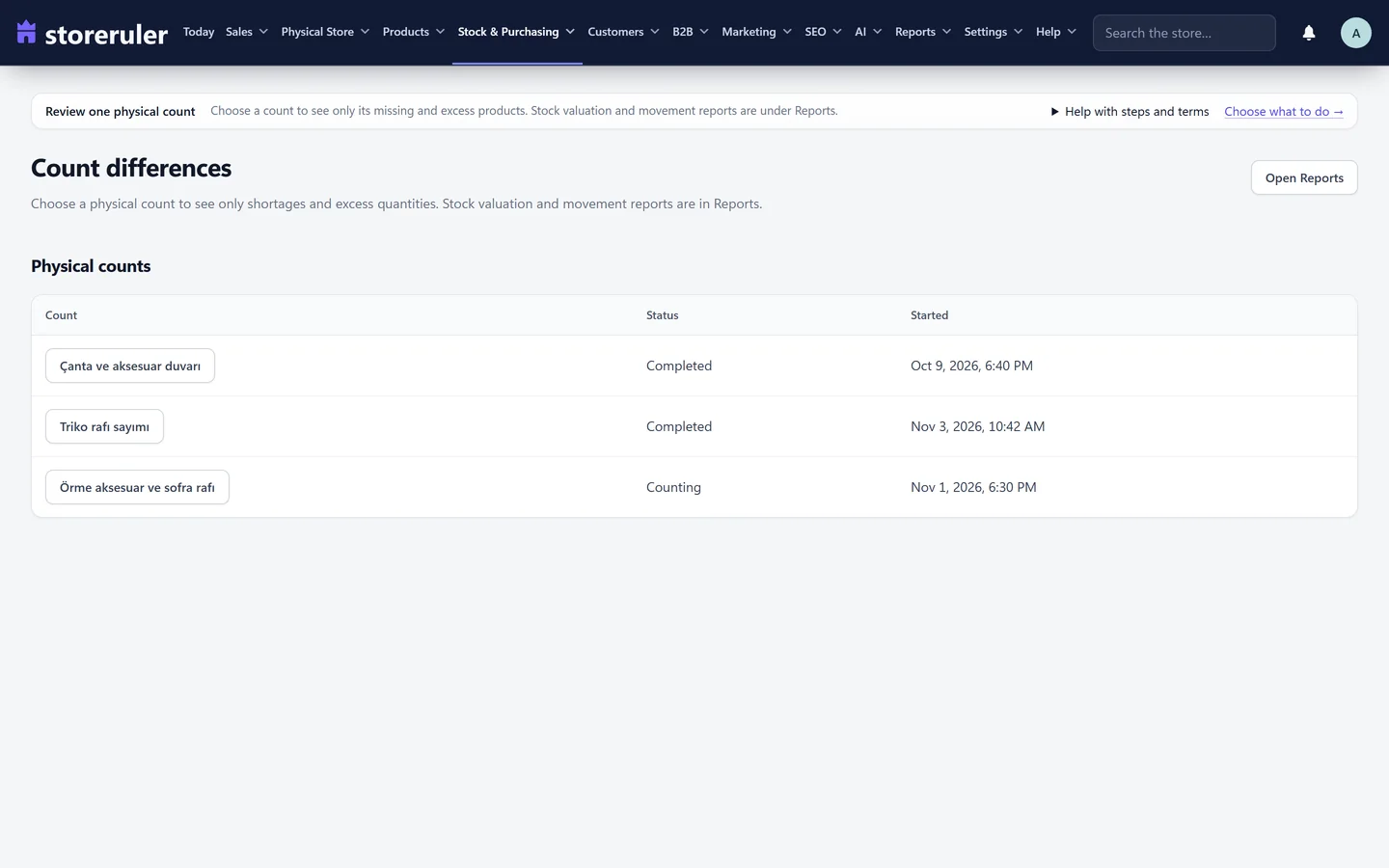
A product whose stock moved after it was counted shows Recount required; use Reopen to recount. A restore point is saved before every apply, and undoing is refused if stock moved since. Count differences lists one count's shortages and excess; for a blind count, only people with the approval permission see them.
Movements, corrections and exports
- Stock corrections records a one-off change with a reason, such as damaged or lost.
- Reports → Stock movements shows received, adjusted and sold quantities by product.
- Accounting exports on the Reports page prepares CSV files for a period of up to one year: sales by order, refunds, tax by rate and payments recorded in the store. The files are kept for 24 hours, and preparing them changes nothing.
Purchasing, stock counts and accounting exports are part of StoreRuler Plus, together with the till. Store staff see the page as Goods in, without purchase costs. Compare the plans on the pricing page.
Products without a barcode or SKU slow down both counting and receiving; product health finds them. For a full stock take routine, read how to do a WooCommerce stock take with a barcode scanner. The till sells from the same stock: see Quick Sale and the till and the inventory and purchasing overview.
Frequently asked questions
Does placing a purchase order add stock?
No. Stock goes up only when you receive the goods under Goods in. Placing the order changes its status to Order placed.
Does Send by WhatsApp send the order for me?
No. It opens WhatsApp with the order written out, and you press send. Send by email sends the email at once to the supplier's saved address.
Can we keep selling during a stock count?
Yes. If a product's stock changes after you counted it, the row shows Recount required and the count cannot be applied until you count that product again.
Are the accounting exports official accounting records?
No. They are CSV files for your accountant: sales by order, refunds, tax by rate and payments recorded in the store. StoreRuler does not create invoices or bookkeeping entries.