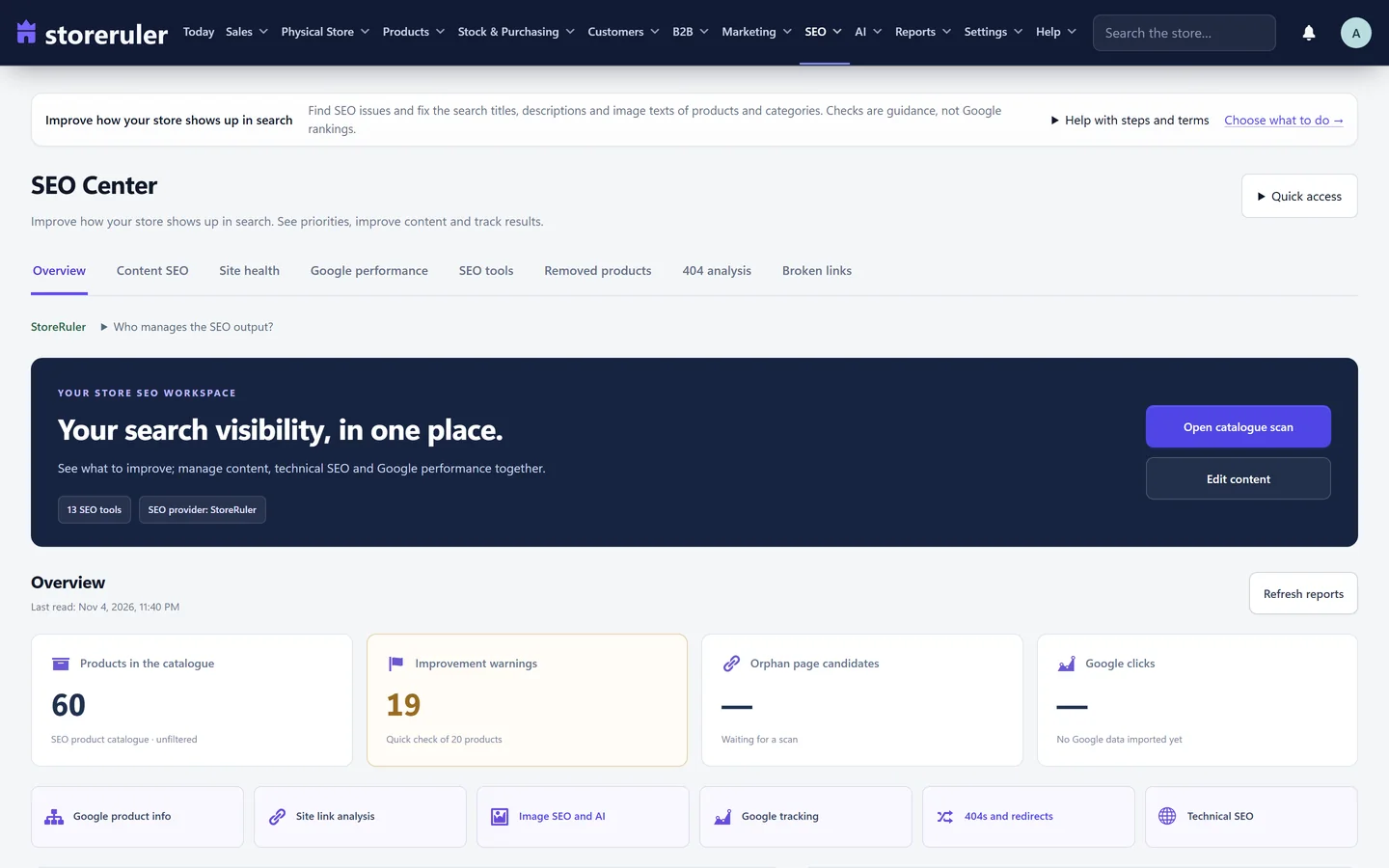
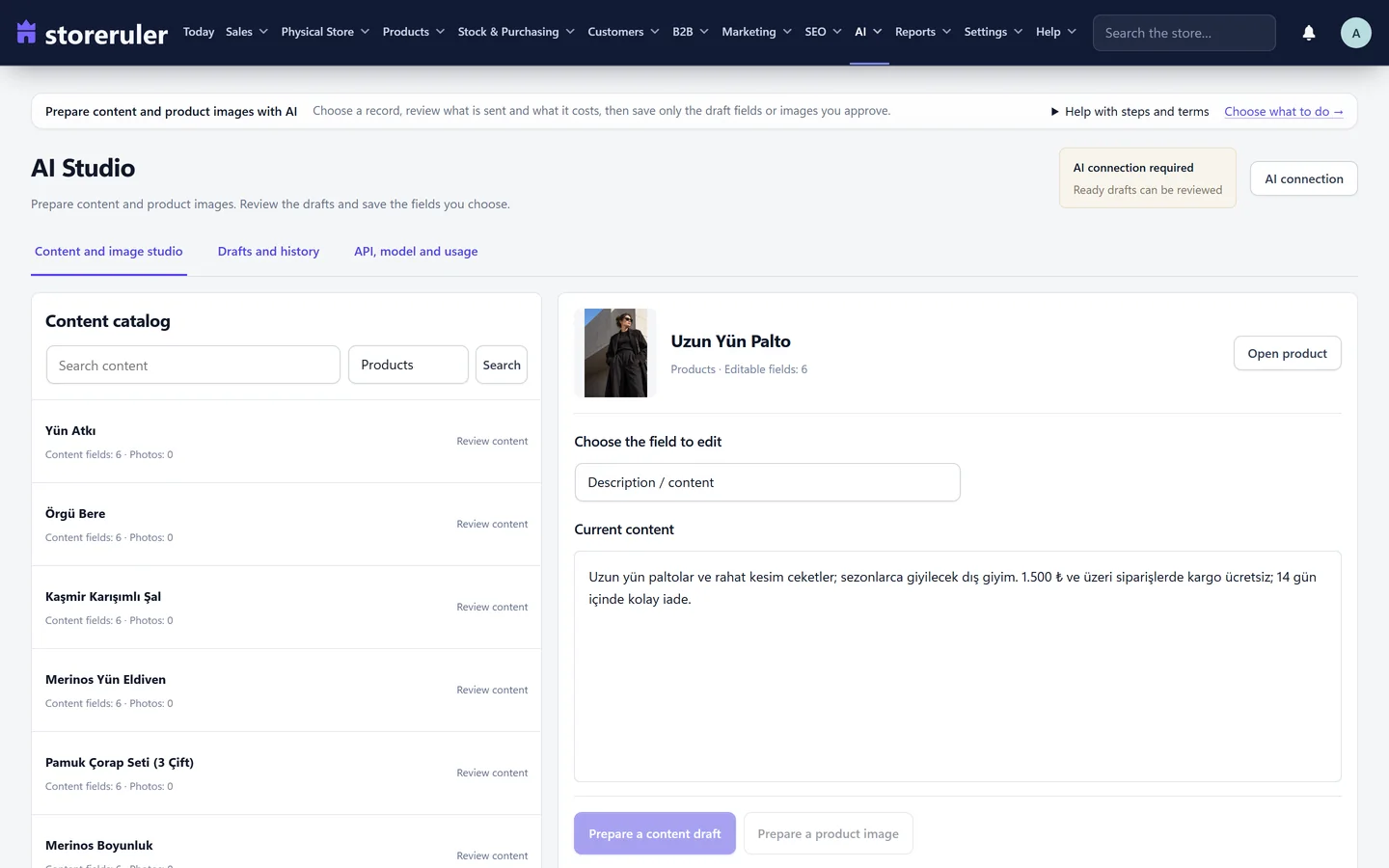
In StoreRuler Pro, StoreRuler → SEO → SEO Center scans your WooCommerce catalogue for search issues, fixes titles, descriptions and image alt text with a preview and undo, and shows your Search Console data. StoreRuler → AI → AI Studio drafts product texts and images with your store's own OpenAI account. Nothing is saved until you review it.
Scan the catalogue
WooCommerce has no SEO checks of its own; an SEO plugin adds fields, but you still look product by product. The SEO Center's Catalogue scan checks the products, product categories, brands and tags you may edit, and changes nothing. It flags, among others:
- no custom SEO title or description, a title over 60 or a description over 160 characters;
- a damaged title (the name cut off, or a lost percent value);
- very little text, a missing product image or images without alt text;
- an invalid barcode, a missing price, or a hidden or unpublished product.
The tabs are Overview, Content SEO, Site health, Google performance, SEO tools, Removed products, 404 analysis and Broken links. Quick access opens Fix damaged titles, the site link scan for orphan pages, Bulk SEO and SEO settings.
Fixes, structured data and sitemaps
- Fixes. Fix damaged titles suggests full titles; short and category description drafts are built only from facts the product or category has. Each change shows a preview and can be undone.
- Structured data. Complete product information for Google adds price, stock, brand, barcode and existing colour and size options to the product data, plus shipping and return details. It completes the WooCommerce or SEO plugin output; it does not add a second product schema.
- Sitemaps. WordPress keeps the sitemap. You can leave single items out of it or set them to noindex; these are separate choices.
- Technical SEO. IndexNow (off until you turn it on) tells Bing, Yandex and other IndexNow engines when public pages change. llms.txt publishes a short guide to your store for AI assistants.
Bulk SEO and search matches
- Open StoreRuler → SEO → Bulk SEO, choose the Content type and narrow the list with filters such as category, brand, stock status or price.
- Under Fields to edit, choose SEO title and description, Image alt text and media title or SEO preferences and keyphrases.
- Write a template with {name}, {category}, {brand}, {price} and {store}, for example "Buy {name} online at {store}". Tick Fill only empty SEO fields to keep titles you wrote by hand.
- Check the Live preview, which counts characters on the longest example, then click Apply SEO changes.
Undo last SEO run restores the fields that still match that run; names, prices and stock are never touched. Search matches live under StoreRuler → Marketing → Search management: Add search match links what shoppers type (Shopper searches for) to the words your products use (Also search for), one way or both ways. Products are not changed.

Search Console and rank tracking
- As a site administrator, click Set up the Google connection in the SEO Center.
- In Google Cloud, create an OAuth client of the type "Web application" and turn on the Search Console API in the same project.
- Paste the Client ID and Client Secret, click Connect with Google and allow read access.
- Choose your Search Console property, then add up to 20 searches to Searches you track.
The connection is read only. You see clicks, impressions and the Avg. position of the searches you track. That position is the average over real impressions, not a live rank for one person or city. A Google period of up to 90 days within the last 16 months can be imported; a Search Console Pages CSV export works too.
AI Studio: product texts and alt text
- An administrator opens AI → API, model and usage, adds the store's OpenAI API key and sets the Daily generation attempt limit (20 by default, 1 to 999, reset each UTC day and shared by all AI tools). The saved key is never shown again.
- In AI Studio, pick a product, category, brand, tag, post or page from the content catalogue and click Prepare a content draft.
- Tick the fields (title, description, short description, tags, SEO title, SEO description), choose the language and writing style and add your own request if needed.
- Review what will be sent, tick the approval and click Start generation. Order and customer records, price, cost and stock are not sent.
- Compare each field with the content before generation, untick what you do not want and click Save the selected fields. Undo this change restores the fields saved in that step.
Each draft covers one item. Its status is saved, so you can close the page and open the result later under Drafts and history. For alt text across the catalogue, open Bulk SEO, choose Image alt text and media title and click Analyze photos with AI: up to 50 photos per run are analysed, and the drafts go through the same Bulk SEO preview before you apply them.
The SEO Center, Bulk SEO and AI Studio are part of StoreRuler Pro. Redirects and the 404 report are free; see redirects and the 404 report. More in SEO, AI tools and pricing.
Frequently asked questions
Does the SEO Center replace my SEO plugin?
No. It works alongside a supported SEO plugin and edits that plugin's own title and description fields. Without an SEO plugin, StoreRuler writes the SEO tags and WordPress keeps the sitemap.
Can StoreRuler change anything on Google?
No. The Search Console connection is read only. It reads clicks, impressions and average positions; nothing is changed on Google.
Does AI cost extra?
Not from StoreRuler. AI Studio uses your store's own OpenAI account, so OpenAI bills you for what you use, and a daily limit caps the number of attempts.
Is an AI text published by itself?
No. Every AI result is a draft. Fields change only after you review them and confirm the save, and a saved change can be undone.